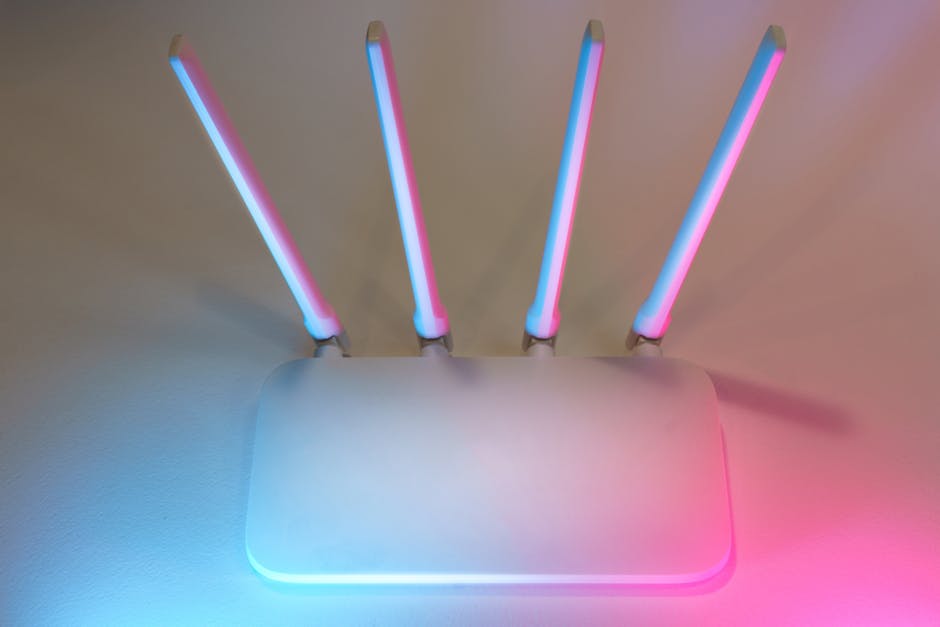
The seemingly innocuous Wi-Fi router, often hidden behind a couch or tucked away in a closet, holds the keys to your entire digital kingdom. It’s not an exaggeration to say that securing this device is one of the most impactful steps you can take to bolster your home network's defenses. Many users remain blissfully unaware of the critical vulnerabilities that exist right out of the box, or how easily these can be exploited by even amateur hackers. The good news is that locking down your router doesn't require a degree in computer science or hours of tedious configuration. With a focused approach, you can significantly enhance your security posture in a surprisingly short amount of time, turning what was once a hacker's playground into a digital fortress. Let's delve into the first few crucial steps that form the bedrock of a secure home network.
Eradicating the Default Scourge Changing Administrator Credentials Immediately
This is, without a doubt, the single most important and often overlooked step in router security, and it's where many home users fall flat. When you unbox a new router, it comes pre-configured with a default username and password for administrative access. These aren't unique to your device; they're often generic combinations like 'admin/admin', 'admin/password', 'root/root', or 'user/user', or even just 'admin' with no password at all. Worse yet, many manufacturers use default credentials that are publicly available in online databases, easily searchable with a quick Google query or found in extensive lists compiled by security researchers and, yes, hackers. This isn't just a minor oversight; it's a colossal security flaw that acts as an open invitation for anyone to waltz into your router’s control panel and wreak havoc.
The danger here is profound. Imagine if every house on your street had the same front door key, and that key was published in a public directory. That's essentially what default router credentials represent. Cybercriminals actively scan IP address ranges for routers still using these factory settings. Tools like Shodan, often referred to as "the search engine for the internet of things," can easily identify vulnerable devices across the globe, allowing attackers to pinpoint targets with shocking efficiency. Once an attacker gains administrative access to your router, they own your network. They can change your Wi-Fi password, redirect your internet traffic through their own servers, install malicious firmware, spy on your browsing habits, or even use your internet connection for illegal activities, leaving you to potentially face the consequences. This isn't just about someone stealing your Wi-Fi; it's about a complete compromise of your network's integrity and your personal privacy. My own experience helping friends and family with their home networks often reveals this exact vulnerability, and the look on their faces when I show them how easily their router could have been hijacked is always a mix of shock and immediate resolve.
So, what constitutes a strong router password? It needs to be long, complex, and unique. Forget short, memorable phrases. We're talking about a minimum of 12-16 characters, incorporating a mix of uppercase and lowercase letters, numbers, and special symbols. Think of a passphrase rather than a single word, something like "MyRouterIsNowAFortress!2024". Avoid using personal information, common dictionary words, or sequential numbers. Each router should have its own unique administrative password, never reused from other accounts. While it might seem daunting to remember such a complex string, this is precisely where a reputable password manager becomes an invaluable tool. Store your router's administrative credentials securely within your password manager, ensuring you can access them when needed without relying on easily guessable alternatives or scribbling them on a sticky note under the router – a surprisingly common practice I've observed in the wild.
The Firmware Frontier Keeping Your Router's Brain Up-to-Date
Just like your computer's operating system or your smartphone's apps, your Wi-Fi router runs on software, known as firmware. This firmware is essentially the operating system for your router, dictating how it communicates, manages traffic, and handles security protocols. And just like any other software, it's susceptible to bugs, vulnerabilities, and security flaws that are discovered over time. Router manufacturers periodically release firmware updates to patch these vulnerabilities, improve performance, add new features, and enhance security. Failing to update your router's firmware is akin to running an old, unpatched version of Windows XP in 2024; you're essentially leaving yourself exposed to a multitude of known exploits that have long since been addressed by the vendor.
The impact of outdated firmware can be catastrophic. Many high-profile router exploits, such as those that fueled the Mirai botnet, specifically targeted known vulnerabilities in older firmware versions of popular router brands. Attackers scan for these specific vulnerabilities, and if your router is running an unpatched version, it becomes an easy target for remote code execution, allowing them to take complete control. These aren't abstract threats; these are real-world attacks that have taken down websites, launched massive spam campaigns, and even disrupted critical infrastructure. A router with unpatched firmware is a ticking time bomb, waiting for a savvy attacker to exploit a weakness that could have been easily remedied with a few clicks. It's a foundational element of network hygiene that far too many people neglect, often because they simply don't know it's something they need to do, or they fear "breaking" their internet connection.
Checking for and applying firmware updates typically involves logging into your router's administrative interface (using those newly changed, strong credentials, of course). Most modern routers have an "Update" or "Firmware" section within their settings. Some even offer automatic updates, which, if available and reliable, should be enabled. If not, you’ll usually find a button to check for new firmware or an option to manually upload a file downloaded from the manufacturer's support website. Always download firmware directly from the official manufacturer's site, never from third-party sources, as this could introduce malicious software. While the process can vary slightly between brands, the general steps are quite similar: access router interface, navigate to firmware/update section, check for updates, and initiate the installation. It might take a few minutes, and your internet will temporarily disconnect, but the peace of mind knowing your router is running the latest, most secure software is invaluable. Make it a habit to check for updates every few months, or whenever you hear about a major cybersecurity vulnerability impacting routers.
Fortifying Your Wireless Shield Embracing WPA3 or Strong WPA2-AES
Your Wi-Fi network's security protocol is the encryption standard that scrambles the data flowing wirelessly between your devices and your router, preventing unauthorized individuals from eavesdropping. Over the years, these standards have evolved, with each iteration offering stronger protection. We've moved from the notoriously weak WEP (Wired Equivalent Privacy), which could be cracked in minutes, through various versions of WPA (Wi-Fi Protected Access), to the current gold standards: WPA2-PSK (AES) and the newer, more robust WPA3. If your router is still using WEP or WPA (TKIP), you are operating on a dangerously outdated and easily exploitable encryption method, essentially broadcasting your data in plain text to anyone with a basic hacking tool.
WPA2-PSK, specifically with AES encryption, has been the industry standard for a long time and remains a solid choice for most home users if WPA3 isn't an option. AES (Advanced Encryption Standard) is a strong cryptographic algorithm, and when combined with a robust, unique Wi-Fi password (your network key), it provides a good level of protection against casual eavesdropping and brute-force attacks. However, WPA2 did have a significant vulnerability discovered in 2017, known as KRACK (Key Reinstallation Attack), which could allow an attacker to intercept and decrypt data. While patches were released for most devices, it highlighted the continuous need for stronger protocols. This is where WPA3 steps in, offering enhanced security features that make it even more resilient against modern attack techniques, including improved protection against brute-force dictionary attacks and individualized data encryption for each connection, even on open networks.
Migrating to WPA3 or ensuring you are on WPA2-PSK with AES is a straightforward process within your router’s settings. Log into the administrative interface, navigate to the "Wireless," "Wi-Fi," or "Security" section, and look for "Security Mode" or "Encryption Type." Select WPA3 if your router and all your connected devices support it. If not, ensure you select WPA2-PSK (AES) or WPA2/WPA3 Mixed Mode (which allows older devices to connect while newer ones use WPA3). Crucially, your Wi-Fi password (the one you give to friends to connect to your network) needs to be incredibly strong – similar to your router's administrative password, a long, complex passphrase is essential. This passphrase is the "pre-shared key" (PSK) that encrypts all your wireless traffic. A weak Wi-Fi password, even with WPA2-AES, can still be vulnerable to dictionary attacks, allowing an intruder to gain access to your network. Make this password unique, complex, and change it periodically, especially if you’ve shared it with many people or suspect it might have been compromised. This combination of strong encryption protocol and a robust passphrase creates a formidable barrier against unauthorized access to your wireless network.