Stopping the Stealthy Data Flow Managing Background Processes
Reining in background app activity is a critical step in both bolstering your phone's privacy and optimizing its performance. By selectively disabling background refresh and restricting data usage for non-essential applications, you effectively cut off many of the avenues through which apps can silently collect data, drain your battery, and consume your mobile data plan. This isn't about crippling your phone's functionality; it's about smart management and ensuring that only the apps you truly need to be active in the background are granted that privilege. It’s an exercise in mindful digital resource allocation.
For iPhone users, the key setting is "Background App Refresh." Navigate to Settings > General > Background App Refresh. Here, you'll first see a master toggle that allows you to turn this feature off entirely, which is the most private option but might hinder some app functionalities (e.g., email won't fetch new messages until you open the app). More practically, you can choose to allow background refresh only "Wi-Fi" or "Wi-Fi & Cellular Data." Below this, you'll find a comprehensive list of all your installed apps, each with its own toggle. Go through this list meticulously. For any app that doesn't absolutely need to update content or receive notifications when not in use – think games, photo editors, utility apps, or even many social media apps – toggle its background refresh OFF. Consider which apps genuinely need to be "live" in the background (e.g., messaging apps, navigation apps actively giving directions). For the vast majority, turning this off will have no noticeable negative impact on your user experience but will significantly improve privacy and battery life. This granular control empowers you to make informed decisions about which apps are allowed to operate in the shadows of your device’s activity.
Android users have similar, and in some ways more extensive, controls over background data usage. The path might vary slightly by device manufacturer, but generally, you'll go to Settings > Apps (or "Apps & notifications"). Then, tap "See all apps" or select an individual app from the list. Within each app's settings, look for "Mobile data & Wi-Fi" or "Data usage." Here, you'll typically find a toggle for "Background data" or "Allow background data usage." For apps that don't need constant connectivity when not in use, turn this OFF. Additionally, many Android devices offer a "Restrict background data" or "Data Saver" mode in the main network settings (often under Settings > Network & internet > Data Saver). Activating this mode will automatically restrict background data for most apps, giving you a broad stroke of control. For apps where you need immediate notifications (like messaging apps), you might need to whitelist them individually. Some Android versions also feature "Adaptive Battery" or "Battery optimization" settings (often under Settings > Battery) that use machine learning to intelligently manage background activity based on your usage patterns. While these can be helpful, manually reviewing and restricting background data for specific apps provides the most direct and reliable control over what your apps are doing when you're not looking. By diligently managing these settings, you prevent apps from silently siphoning off your data and resources, making your phone a more private and efficient device.
The Hidden Hand of Data Sharing Silencing Diagnostic, Usage, and Analytics Reports
Behind the sleek interfaces and seamless functionality of our smartphones lies a constant, often invisible, stream of data flowing from our devices back to their manufacturers, operating system developers, and app creators. This data, typically categorized as "diagnostic," "usage," or "analytics" reports, is ostensibly collected to improve products, fix bugs, and understand user behavior. While the intentions might be benign – who doesn't want a more stable and feature-rich device? – the sheer volume and granularity of this data can be deeply unsettling from a privacy perspective. These reports can include everything from crash logs and performance metrics to detailed information about how you interact with your device, which features you use, how often, and for how long. It's a constant, passive surveillance of your digital habits, often happening without explicit, easily understood consent, creating a comprehensive picture of your relationship with your technology.
The problem isn't just that this data is collected; it's what happens to it afterward. While companies often claim this data is anonymized or aggregated, the process of true anonymization is incredibly difficult to achieve perfectly, especially when combined with other data points. Researchers have repeatedly demonstrated that even seemingly anonymous data can be de-anonymized with surprising ease, especially when combined with other publicly available information. Furthermore, this data is often shared with third-party analytics firms, who then integrate it into their vast databases, further extending its reach and potential for misuse. Imagine a scenario where a device manufacturer shares usage data with an advertising partner, who then uses insights about your app usage patterns to infer sensitive details about your lifestyle or health. This data, collected under the guise of "improving the experience," can become a valuable commodity in the data brokerage market, contributing to the very profiles that fuel targeted advertising and other forms of digital manipulation.
Beyond commercial implications, the collection of extensive diagnostic and usage data also raises concerns about potential government access. In many jurisdictions, law enforcement or intelligence agencies can compel companies to hand over data they possess, including these seemingly innocuous usage reports. While such requests are typically subject to legal processes, the sheer existence of such detailed data on company servers creates a potential vulnerability for users. If your device is constantly reporting back on your interactions, that information, however anonymized, could theoretically be pieced together to reveal patterns of behavior that you might prefer to keep private. The balance between product improvement and user privacy is a delicate one, and in the pursuit of the former, the latter is often silently compromised, turning our devices into unwitting informants on our own digital lives. Understanding and controlling these data streams is essential for anyone serious about maintaining their digital autonomy.
Cutting the Cord on Telemetry Restricting Diagnostic and Usage Sharing
Taking control of the diagnostic, usage, and analytics data your phone sends back to developers and manufacturers is a crucial step in minimizing your digital footprint and enhancing your privacy. While some basic data collection is necessary for security updates and essential system functions, much of the detailed telemetry can be significantly reduced or disabled without impairing your device's core functionality. It’s about making an informed decision about how much insight you’re willing to provide into your device usage, and preventing unnecessary data from being collected and potentially shared.
For iPhone users, Apple generally offers a more streamlined approach to these settings. Navigate to Settings > Privacy & Security. Scroll down to the very bottom, where you'll find sections like "Analytics & Improvements" and "Apple Advertising." Under "Analytics & Improvements," you'll see a toggle for "Share iPhone Analytics" (and potentially "Share iCloud Analytics" and "Share Health & Activity Analytics"). It is highly recommended to turn ALL of these toggles OFF. While Apple claims this data is anonymized and used to improve iOS, opting out ensures that your device is not contributing to this broad data collection. You might also find options for "Improve Siri & Dictation" or "Improve Apple Maps." While these are under different headings, they also involve sharing usage data, so consider disabling them if you prioritize maximum privacy over contributing to service improvements. For Apple Advertising, as discussed earlier, ensure "Personalized Ads" is off. By actively disabling these analytics and improvement sharing options, you significantly reduce the amount of personal telemetry your iPhone sends back to Apple, making your device a much more private entity.
Android users have a bit more variability depending on their phone's manufacturer (e.g., Samsung, Google Pixel, OnePlus), but the core principles remain. Generally, you'll want to check a few key areas. First, look under Settings > Privacy (or Settings > Security & privacy). Here, you often find a section for "Usage & diagnostics" or "Send diagnostic data." Turn OFF any toggle that allows your device to automatically send usage or diagnostic information to Google or your device manufacturer. This is a primary conduit for passive data collection. Next, delve into your Google Account settings, which can usually be accessed through the Google app or directly from Settings > Google > Manage your Google Account. Under the "Data & privacy" tab, review "Web & App Activity" and ensure that "Include voice & audio activity" and "Include Chrome history and activity from sites, apps, and devices that use Google services" are managed to your preference – ideally, paused or set to auto-delete frequently. Also, check "Device information" and consider pausing that. Furthermore, many Android device manufacturers have their own separate analytics programs. For example, on Samsung devices, you might find "Customization Service" or "Send diagnostic data" under Settings > Privacy, which should also be reviewed and disabled. It requires a bit of digging, but systematically turning off these diagnostic, usage, and analytics sharing options across your device and associated accounts is a powerful way to reduce the silent flow of your personal data, ensuring that your phone works for you, rather than constantly reporting on you.
The Invisible Scanners and Clipboard Snoopers Disabling Nearby Device Scanning and Clipboard Access
Beyond the more commonly discussed privacy concerns like microphone and location access, our smartphones harbor several other, often overlooked, mechanisms that can silently gather sensitive information about us and our surroundings. Two prominent examples are "nearby device scanning" (often utilizing Bluetooth and Wi-Fi) and "clipboard access." These features, while designed for convenience and connectivity, can become potent tools for passive surveillance and data harvesting if left unchecked. They operate in the background, out of immediate sight, collecting fragments of data that, when pieced together, can reveal surprisingly intimate details about your digital and physical environment, creating a subtle but persistent erosion of your personal privacy.
Nearby device scanning, particularly through Bluetooth and Wi-Fi, is a feature that allows your phone to discover and connect to other devices and networks in its vicinity. This is essential for pairing wireless headphones, connecting to smart home devices, or joining Wi-Fi networks. However, many apps request permission to perform these scans even when they have no apparent need for such functionality. When an app has permission to scan for nearby devices, it can detect unique identifiers (like MAC addresses) of other phones, smartwatches, and even IoT devices in your immediate environment. This data, often combined with timestamps and location information, can be used to map social connections, track movement patterns (e.g., detecting when you are near specific individuals or in certain types of establishments), and even infer the type of technology you and those around you use. It's a subtle form of digital reconnaissance, where your phone acts as a sensor, passively observing and reporting on the digital landscape around you, often without any explicit indication that this is occurring. This information, when aggregated, can be incredibly valuable to data brokers and advertisers, who can use it to build richer profiles about your social proximity and technological environment.
Clipboard access is another stealthy privacy concern. The clipboard is a temporary storage area where text, images, and other data are held after you "copy" them, ready to be "pasted" elsewhere. It's a fundamental feature for productivity. However, many apps, when launched, automatically request or simply have access to read the contents of your clipboard. Imagine copying a password, a sensitive piece of text from an email, your bank account number, or a private message. If an app has clipboard access, it can silently read whatever you've copied, potentially exfiltrating that sensitive information without your knowledge or consent. While major operating systems have recently introduced features to alert users when apps access the clipboard, many older apps or those on less updated systems might still be able to do so silently. This poses a significant risk, especially if you frequently copy sensitive data, as it creates an invisible backdoor for apps to potentially steal information that you never intended to share with them. It’s a classic example of a convenience feature being exploited for privacy-invasive purposes.
Sealing the Digital Leaks Controlling Scanners and Clipboard Access
Addressing nearby device scanning and clipboard access is crucial for a comprehensive approach to smartphone privacy. These often-overlooked settings can be significant vectors for passive data collection, and taking control of them means shutting down subtle but potent surveillance mechanisms. It's about ensuring your phone isn't inadvertently broadcasting information about your surroundings or silently siphoning sensitive data you've temporarily stored.
For iPhone users, managing nearby device scanning is primarily handled through Bluetooth and Local Network permissions. Navigate to Settings > Privacy & Security. Here, you'll find sections for "Bluetooth" and "Local Network." Go into each of these. For "Bluetooth," you'll see a list of apps that have requested Bluetooth access. Unless an app explicitly needs Bluetooth for its core functionality (like a fitness tracker app connecting to your wearable or a music app connecting to a speaker), toggle its access OFF. Many apps request Bluetooth for "nearby device discovery" for advertising purposes, which is entirely unnecessary. Similarly, under "Local Network," review which apps have permission to access devices on your local network. Again, unless an app is a smart home controller or a network utility, it likely doesn't need this permission, so toggle it OFF. Regarding clipboard access, iOS 16 and later versions provide a prominent banner notification whenever an app attempts to read your clipboard, giving you an immediate visual alert. While there isn't a direct "disable clipboard access" toggle per app, paying attention to these alerts and revoking an app's general permissions (like network access or even deleting the app) if it's found to be improperly accessing your clipboard is the best course of action. Vigilance here is key.
Android users have more direct control over these specific permissions. For nearby device scanning, navigate to Settings > Location > Wi-Fi and Bluetooth scanning. Here, you'll typically find separate toggles for "Wi-Fi scanning" and "Bluetooth scanning." While turning these off globally can impact the convenience of quickly finding networks or devices, it significantly enhances privacy by preventing apps and system services from constantly scanning your environment. If you keep them on, you'll still want to manage individual app permissions. Go to Settings > Apps, select an app, then go to "Permissions." Look for permissions like "Nearby devices," "Location" (which often bundles Wi-Fi/Bluetooth scanning), or "Bluetooth." Disable these for any app that doesn't genuinely need them. For clipboard access, Android 10 and newer versions have introduced restrictions, making it harder for apps to silently read the clipboard. However, for older Android versions or some custom ROMs, the risk might still exist. While there isn't a universal "clipboard permission" toggle, the best practice is to be extremely cautious about what sensitive information you copy to your clipboard. Avoid copying passwords or financial details. If an app seems suspicious or frequently accesses your clipboard without justification, consider revoking its other permissions or uninstalling it. By diligently managing Bluetooth, Wi-Fi scanning, and being mindful of clipboard usage, you can significantly reduce these often-overlooked avenues of passive data collection, fortifying your phone's privacy against subtle digital intrusions.
Navigating the complex digital landscape of our smartphones can feel like an unending uphill battle, a constant struggle against an invisible tide of data collection and privacy erosion. But it doesn't have to be a losing fight. The journey we've taken through these often-hidden settings demonstrates that while tech giants and app developers might design systems for maximum data harvest, we, as users, possess powerful tools to reclaim our digital autonomy. It's not about abandoning technology or retreating from the connected world; it's about intelligent engagement, informed choices, and proactive management. Think of your phone not as a passive recipient of commands, but as a sophisticated instrument that requires careful calibration and ongoing maintenance to serve your needs without compromising your personal space. The real power lies in understanding how these mechanisms work and then making deliberate decisions to align your device's behavior with your privacy values.
The steps outlined here, from muting the digital ear of intrusive apps to sealing the leaks from clipboard snooping, are not one-time fixes. They represent a commitment to ongoing digital hygiene, a practice as essential as locking your front door or shredding sensitive physical documents. The digital world is dynamic; new apps emerge, existing ones update with new permissions, and privacy policies shift. Therefore, periodically revisiting these settings, perhaps every few months or after major operating system updates, is a habit that will serve you well. It's about cultivating a mindset of healthy skepticism, questioning why an app needs a certain permission, and understanding the potential implications before you tap 'Allow.' This proactive approach transforms you from a passive data subject into an active guardian of your digital self, empowering you to shape your online experience rather than merely reacting to it.
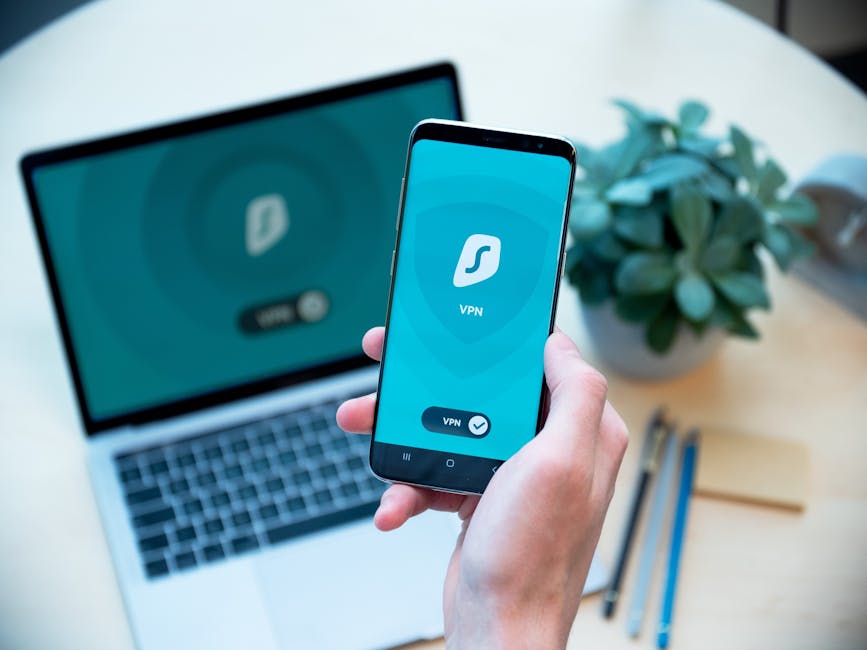
Beyond the specific settings discussed, remember that true privacy is a multi-layered defense. Consider integrating a reputable Virtual Private Network (VPN) into your daily routine to encrypt your internet traffic and mask your IP address, adding another layer of anonymity to your online activities. Be judicious about the apps you download, favoring those from well-known developers with strong privacy reputations. Regularly clear your browser's cookies and cache. Use strong, unique passwords for all your accounts, ideally managed by a secure password manager. Enable two-factor authentication wherever possible. These broader practices, combined with the detailed setting adjustments we've explored, form a robust shield against the pervasive data collection that defines much of the modern digital experience. It's a holistic approach to privacy, recognizing that every digital interaction, however small, contributes to your overall risk profile.
Your Actionable Privacy Checklist Securing Your Digital Sanctuary
Here's a concise, actionable guide to help you implement the privacy enhancements we've discussed. This isn't just a list; it's a roadmap to a more secure and private mobile experience. Take these steps methodically, and you’ll notice a tangible difference in your digital peace of mind.
- Silence Unnecessary Microphone Access:
- On iOS: Go to Settings > Privacy & Security > Microphone. Review every app. If an app doesn't need your microphone for its core function (e.g., games, photo editors, many social media apps), toggle it OFF. Be ruthless in your assessment.
- On Android: Go to Settings > Apps > App permissions > Microphone. For each app, select "Don't allow" unless it's essential. For essential apps, choose "Allow only while using the app."
- Limit Precise Location Data Sharing:
- On iOS: Go to Settings > Privacy & Security > Location Services. For most apps, choose "Never" or "While Using the App." Crucially, for nearly all apps, toggle "Precise Location" OFF.
- On Android: Go to Settings > Location > App location permissions. Set most apps to "Don't allow" or "Allow only while using the app." Disable "Use precise location" for non-mapping/navigation apps. Also, consider turning off "Google Location History" in your Google Account settings.
- Disable Personalized Ad Tracking:
- On iOS: Go to Settings > Privacy & Security > Tracking. Ensure "Allow Apps to Request to Track" is on, then individually turn OFF tracking for every app listed below. Also, in Settings > Privacy & Security > Apple Advertising, toggle off "Personalized Ads."
- On Android: Go to Settings > Google > Ads. Tap "Reset advertising ID" and then toggle on "Opt out of Ads Personalization." Regularly reset your advertising ID.
- Control Voice Assistant Data Retention:
- On iOS (Siri): Go to Settings > Siri & Search. Toggle off "Listen for 'Hey Siri'." Go to "Siri & Dictation History" and "Delete Siri & Dictation History."
- On Android (Google Assistant): Open the Google app > Profile Picture > Settings > Google Assistant > Hey Google & Voice Match, and disable "Hey Google." Then, in Settings > Google Assistant > Your data in the Assistant, delete past activity and set auto-delete preferences.
- Restrict Background App Refresh and Data Usage:
- On iOS: Go to Settings > General > Background App Refresh. For most apps, toggle this OFF. Allow only essential messaging or navigation apps.
- On Android: Go to Settings > Apps, select an app, then "Mobile data & Wi-Fi" or "Data usage," and toggle off "Background data." Consider enabling "Data Saver" globally.
- Silence Diagnostic and Usage Reporting:
- On iOS: Go to Settings > Privacy & Security > Analytics & Improvements. Turn OFF "Share iPhone Analytics" and any other related sharing options.
- On Android: Go to Settings > Privacy (or Settings > Security & privacy). Turn OFF "Usage & diagnostics" or "Send diagnostic data." Review your Google Account's "Data & privacy" settings to manage "Web & App Activity" and "Device information."
- Disable Nearby Device Scanning and Manage Clipboard Access:
- On iOS: Go to Settings > Privacy & Security > Bluetooth and Local Network. Review and disable access for non-essential apps. Pay attention to clipboard access alerts (iOS 16+).
- On Android: Go to Settings > Location > Wi-Fi and Bluetooth scanning and consider turning these off globally, or manage app-specific "Nearby devices" permissions under Settings > Apps > [App Name] > Permissions. Be cautious about copying sensitive data to the clipboard.
Embracing these steps is a declaration of your digital independence. It's a commitment to a more private, secure, and ultimately, more empowering relationship with the technology that shapes so much of our lives. The digital world is constantly evolving, but with vigilance and informed action, you can ensure your phone remains a tool for your benefit, not a conduit for pervasive, uninvited surveillance. Your privacy is not a luxury; it's a fundamental right that demands your active protection.