We’ve journeyed deep into the technical intricacies of lag, exposed the hidden tactics of ISPs, and demystified how VPNs can be a powerful tool for optimizing your gaming connection. Now, it’s time to translate all that knowledge into actionable steps. Theory is great, but practical application is where the rubber meets the road, or more accurately, where your data packets meet the optimal server route. This final section is your comprehensive blueprint, a step-by-step guide to selecting the right VPN, configuring it for peak gaming performance, and troubleshooting common issues across various platforms. My goal here is not just to inform, but to empower you to take control of your gaming experience, transforming frustrating lag into a distant memory. No more excuses, no more blaming the servers; it’s time to forge your own path to zero-ping glory.
Achieving truly optimal, low-latency gaming with a VPN isn't a one-size-fits-all solution; it requires a blend of informed choices, careful configuration, and a willingness to experiment. The digital landscape is constantly shifting, with new game servers, network congestion patterns, and VPN technologies emerging. Therefore, the strategies outlined here are designed to be both immediate solutions and a framework for continuous optimization. We’ll cover everything from the crucial criteria for selecting a VPN that genuinely prioritizes speed, to the specific settings within your VPN client that can shave off those critical milliseconds. Whether you're a PC master race enthusiast, a console warrior, or a mobile gaming maestro, these insights will arm you with the knowledge to conquer lag and finally experience your favorite games the way they were meant to be played.
Forging Your Armor Selecting the Ultimate Gaming VPN
Choosing the right VPN for gaming is perhaps the most critical decision you'll make, as a subpar service can do more harm than good. Forget the marketing fluff about "unlimited bandwidth" and focus on the core attributes that truly impact latency and stability. My experience over the past decade has shown a clear distinction between VPNs built for general privacy and those engineered with performance in mind. This isn't a place to cut corners with free or cheap services; their overcrowded servers and limited infrastructure will only compound your lag problems. Invest wisely, and you'll reap the rewards.
- Extensive, High-Speed Server Network: This is non-negotiable. Look for a VPN with thousands of servers strategically located across the globe, especially in regions where popular game servers reside (e.g., major cities in North America, Europe, and Asia). Crucially, these servers must be high-bandwidth, low-latency machines. Premium providers invest in bare-metal servers with fast uplinks, often 10 Gbps or more, to handle heavy traffic without bottlenecks. A vast network increases your chances of finding a server close to your target game server and one that isn't overloaded.
- Cutting-Edge Protocols (WireGuard, IKEv2): As discussed, WireGuard is generally king for speed. Ensure your chosen VPN fully supports WireGuard and ideally IKEv2. The ability to switch between these protocols easily within the client is a huge advantage for testing and optimization. Avoid VPNs that primarily rely on older, slower protocols like OpenVPN TCP or PPTP for gaming.
- Robust Infrastructure and Peering: While harder to verify directly, reputable VPNs often boast about their direct peering agreements with major internet backbone providers. This means their servers have direct, fast connections to the core internet infrastructure, ensuring your data doesn't get stuck in suboptimal routes once it exits the VPN tunnel. Look for providers that prioritize network quality over sheer server count.
- Dedicated Gaming Features (Optional but Helpful): Some VPNs offer features like "gaming servers" or "ping-optimization" tools. While often marketing, these usually point to servers that are less congested or strategically located for popular games. If a VPN offers such features, it indicates an understanding of gamer needs, but always verify their effectiveness through testing.
- Reliable Customer Support: When you're troubleshooting a connection issue in the heat of a gaming session, responsive and knowledgeable customer support is invaluable. Look for VPNs with 24/7 live chat support.
- No-Logs Policy and Strong Security: While our primary focus is speed, a VPN's core purpose is privacy. Ensure the provider has a strict no-logs policy, ideally audited by a third party, and employs strong AES-256 encryption. This ensures your gaming activities remain private and your ISP cannot identify and throttle your traffic.
- Trial Period or Money-Back Guarantee: Always take advantage of a free trial or a generous money-back guarantee. Network conditions are unique, and what works for one person might not work perfectly for another. Test the VPN extensively with your favorite games during different times of the day before committing to a long-term subscription.
My top recommendations, based on years of testing in the gaming niche, frequently include providers like ExpressVPN, NordVPN, Surfshark, and ProtonVPN. They consistently offer a strong balance of speed, server network, and advanced features crucial for gamers, with WireGuard (or their proprietary equivalents like NordLynx) at the forefront of their offerings. Remember, the best VPN is the one that works best for *your* specific network conditions and gaming needs.
The Grand Configuration Unleashing Your VPN's Full Potential
Once you've selected and subscribed to a premium VPN service, the next step is to configure it for maximum gaming performance. This isn't just about clicking "Connect"; it's about making informed choices within the client settings to ensure every millisecond is accounted for. This guide assumes you have downloaded and installed the VPN client for your chosen provider. These steps are generally applicable across most major VPN services, though specific menu names might vary slightly.
- Prioritize WireGuard or IKEv2 Protocol:
- Open your VPN client and navigate to the "Settings" or "Preferences" menu.
- Look for a "VPN Protocol" or "Connection Protocol" option.
- Select "WireGuard" first. If WireGuard isn't available or you experience instability, switch to "IKEv2."
- Only use "OpenVPN UDP" as a fallback if WireGuard and IKEv2 are problematic. Absolutely avoid "OpenVPN TCP" and older protocols like PPTP or L2TP/IPSec for gaming.
This is the single most impactful setting for reducing latency. WireGuard’s lightweight nature minimizes encryption overhead, giving you the best chance for low ping.
- Strategic Server Selection:
- Open the server list in your VPN client.
- Identify the location of your game server. This might require some research (e.g., checking game forums, using network tools like `ping` or `tracert` to the game server IP, or simply inferring based on region names).
- Connect to a VPN server that is geographically *closest* to the game server. For example, if your game server is in Amsterdam, connect to a VPN server in Amsterdam, or a nearby city like Rotterdam or Brussels if Amsterdam is unavailable or overloaded.
- If the closest server doesn't yield good results, experiment with other servers in the same general region. Look for servers with low load indicators if your VPN client provides them.
- Crucially, test different VPN servers within the target region. Sometimes a server slightly further away might have better routing to the game server due to superior peering.
This step is where you leverage the VPN's ability to optimize your internet route, bypassing your ISP's potentially inefficient pathways. Don't just pick any server; pick the *right* server.
- Enable Split Tunneling (PC/Mac Users):
- Go back to your VPN client's settings and look for "Split Tunneling" or "App Exclusions."
- Enable this feature.
- Add your specific game executable (e.g., `FortniteClient-Win64-Shipping.exe`, `csgo.exe`) or your game launcher (Steam, Epic Games, etc.) to the list of applications that *should* use the VPN.
- Ensure all other non-gaming applications (browsers, streaming apps, download managers) are excluded from the VPN tunnel.
Split tunneling minimizes unnecessary traffic through the VPN, reducing potential bottlenecks and ensuring your game gets priority access to the optimized route.
- Disable Unnecessary Features:
- Features like ad blockers, malware protection, or "double VPN" routes offered within the VPN client, while beneficial for privacy, can add latency. For pure gaming performance, consider temporarily disabling them.
- A "Kill Switch" should generally remain enabled for security, but it doesn't directly impact speed.
Less is often more when it comes to raw speed. Streamline your VPN connection to focus solely on routing your game traffic efficiently.
- Test and Re-test:
- After each configuration change, launch your game and monitor your in-game ping.
- Use the game's built-in ping display or an external network monitoring tool.
- Play a few matches to assess stability and consistency, not just the initial ping number. Look for reduced jitter and packet loss.
- Note down your best configurations (protocol, server location) for future reference.
Your network conditions are dynamic. What works best today might not be optimal tomorrow. Regular testing is key to maintaining peak performance.
Tailoring Your Tech Platform-Specific VPN Implementations
While the core principles of VPN optimization remain universal, the method of implementation varies significantly across different gaming platforms. A PC offers the most granular control, while consoles require a more indirect approach. Understanding these nuances is crucial for effectively deploying your VPN for zero-ping gaming, regardless of your preferred device.
PC Gaming The Most Control
PC gamers have the easiest and most direct path to VPN optimization. You simply install the VPN client on your Windows or macOS machine and follow the "Grand Configuration" steps above. The ability to use split tunneling, experiment with different protocols directly, and monitor performance with advanced tools makes PC the ideal platform for fine-tuning. Always ensure your VPN client is up to date, and consider temporarily disabling your firewall or antivirus if you suspect they are interfering with the VPN connection, though this should be a last resort for troubleshooting only. For competitive players, a wired Ethernet connection is always superior to Wi-Fi for stability, even with a VPN.
Console Gaming Router-Level VPN Setup
For PlayStation, Xbox, Nintendo Switch, and other consoles, you cannot directly install a VPN application. Instead, you need to set up the VPN on your router. This means all devices connected to that router will have their traffic routed through the VPN. This approach has its pros and cons. On the positive side, it protects all your devices simultaneously. On the negative side, it’s more complex to set up, requires a compatible router (often needing custom firmware like DD-WRT or OpenWRT), and doesn't allow for per-application split tunneling. You'll need to manually configure the VPN settings (server address, credentials, protocol) directly into your router's interface. Many premium VPN providers offer detailed guides for router setup. When setting up on a router, prioritize WireGuard or IKEv2 if your router firmware supports it, as OpenVPN can be very CPU-intensive for routers, potentially slowing down your entire network. Make sure your router is powerful enough to handle the encryption overhead without becoming a bottleneck. Some VPNs also offer pre-configured routers for ease of use, which can be a worthwhile investment for console gamers.
Mobile Gaming On the Go Optimization
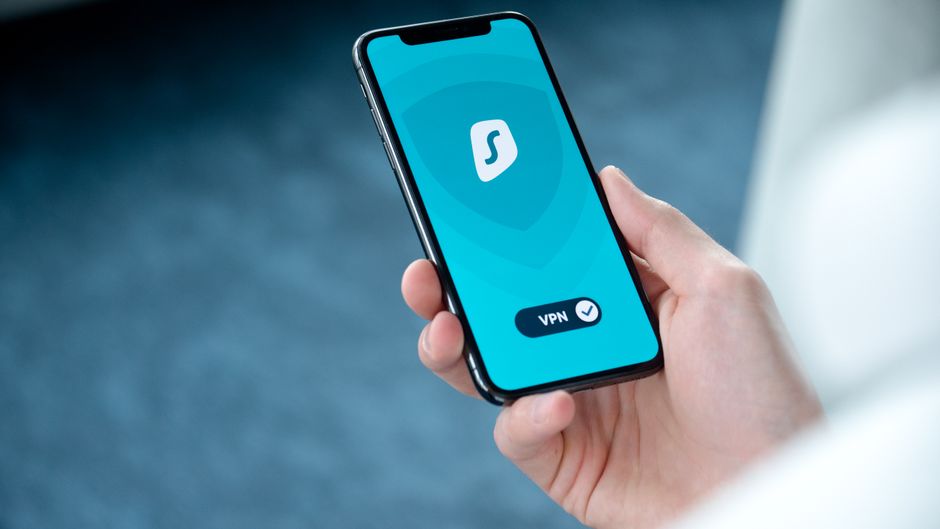
Mobile gaming (iOS, Android) benefits greatly from VPNs, especially when dealing with congested public Wi-Fi networks or mobile data throttling. Most premium VPNs offer excellent, user-friendly mobile apps. The "Grand Configuration" steps still apply: select WireGuard or IKEv2 for optimal performance and strategically choose servers. Mobile VPN apps often include battery-saving features, but for gaming, prioritize performance over power efficiency. Be mindful of your data plan if using a VPN over mobile data, as the encryption overhead can sometimes slightly increase data usage. The seamless re-establishment feature of IKEv2 makes it particularly appealing for mobile users who might frequently switch between Wi-Fi and cellular networks, ensuring a consistent gaming connection on the move.
Beyond the Basics Fine-Tuning and Troubleshooting for Peak Performance
Even with the perfect setup, the internet can be a fickle beast. Network conditions fluctuate, game servers change, and new obstacles can arise. True mastery of zero-ping gaming with a VPN involves continuous vigilance, a willingness to troubleshoot, and an understanding of advanced fine-tuning techniques. This isn't about setting it and forgetting it; it's about dynamic optimization.
- Monitor Your Ping and Packet Loss Regularly: Don't just rely on the feeling. Use in-game network overlays or external tools (like PingPlotter or built-in OS commands like `ping` and `tracert`) to monitor your latency and packet loss to both the VPN server and the game server. This data is invaluable for diagnosing issues and confirming the effectiveness of your VPN configuration. Look for consistency, not just low numbers. High jitter or intermittent packet loss, even with a low average ping, will still ruin your experience.
- Experiment with Different VPN Servers: Even if you found a good server, try others in the same region or even adjacent regions. Sometimes a slightly more distant server might have a better route or be less congested. Keep a log of servers and their performance. The internet's routing can change, so what was optimal last week might not be today.
- Adjust MTU Size (Advanced Users): Maximum Transmission Unit (MTU) determines the largest size of a packet that can be transmitted over a network. An incorrect MTU can lead to packet fragmentation and increased latency. Most VPNs handle this automatically, but if you're experiencing persistent packet loss or connection issues, especially with OpenVPN, manually adjusting your MTU (typically lowering it slightly from the default 1500) can sometimes help. This is an advanced step and requires caution, as incorrect settings can break your internet connection. Consult your VPN provider's support for guidance on MTU adjustments.
- Check Your Local Network: Remember, a VPN can only optimize the path *from* the VPN server *to* the game server. It cannot fix issues on your local network. Ensure your router is up-to-date, your Wi-Fi channel isn't congested, and you're using a wired Ethernet connection for your gaming device whenever possible. Disconnect other bandwidth-heavy devices on your home network during gaming sessions.
- Consider Changing DNS Servers: While not directly related to VPN tunneling, using faster, gaming-optimized DNS servers (like Cloudflare's 1.1.1.1 or Google's 8.8.8.8) can sometimes shave off a few milliseconds during initial connection resolution. Many VPNs offer their own private DNS servers, which are usually optimized.
- Troubleshooting Disconnections: If your VPN frequently disconnects, try switching protocols (e.g., from WireGuard to IKEv2 or OpenVPN UDP). Check your firewall/antivirus settings to ensure they aren't blocking the VPN client. If you're in a restrictive network environment, enable obfuscation features if your VPN offers them.
The quest for zero-ping gaming is an ongoing journey, but with the right VPN, a strategic approach to server selection, and meticulous configuration, you can dramatically improve your online experience. No longer will lag be the silent killer of your gaming dreams. Instead, you'll wield the power of optimized routing and secure connections, ensuring that every shot, every spell, and every critical decision lands exactly when you intend it to, letting your skill shine through unimpeded. Go forth, gamers, and conquer the digital battlefield with confidence and unparalleled responsiveness.