Our journey to solidify your phone's online invisibility culminates in a crucial, often overlooked, yet profoundly impactful practice: the diligent and regular review of your privacy settings across your device, its operating system, and the myriad of applications and services you interact with daily. It's a bit like regularly checking the locks on your digital doors and windows, ensuring that nothing has been left ajar or that no new openings have appeared without your knowledge. The default settings for most smartphones, social media platforms, and even productivity apps are typically configured for maximum convenience and data collection, rather than maximum privacy, meaning that without proactive intervention, you are likely broadcasting far more information than you intend or even realize. This isn't a one-time setup; it's an ongoing commitment, a continuous loop of review and refinement, because privacy policies change, app updates introduce new permissions, and our own comfort levels with data sharing evolve over time.
Think of your phone's operating system (iOS or Android) as the central nervous system of your digital life; its privacy settings are the ultimate control panel for how your device interacts with the outside world and what data it shares. Delve into the "Privacy" or "Security & Privacy" sections of your phone's main settings. Here, you'll find granular controls for everything from location services (which we discussed earlier) to camera and microphone access, contact synchronization, photo library permissions, and even sensitive data like health information or motion and fitness tracking. Take the time to go through each category, app by app, and critically assess whether each application truly needs the permissions it has been granted. For instance, does a social media app really need continuous access to your microphone when you're not actively using it for calls? Does a simple game require access to your entire photo library? The answer, more often than not, is a resounding no. Revoking unnecessary permissions is a powerful way to cut off data streams at their source, significantly diminishing the amount of information your phone passively collects and transmits, thereby making your digital presence less visible and more controlled.
The Eternal Vigilance Mastering Your Digital Footprint
Beyond the operating system, each individual application, particularly those from major tech companies, has its own labyrinthine privacy settings that require careful attention. Google, for example, offers a comprehensive "Privacy Checkup" and "Security Checkup" in your Google Account settings, allowing you to review and adjust data collection for search, YouTube, location history, and ad personalization. Similarly, Apple provides detailed privacy reports and app tracking transparency features that empower users to see which apps are tracking them and to opt out. Social media platforms like Facebook, Instagram, and X (formerly Twitter) are notorious for their complex privacy controls, often requiring a deep dive to disable targeted advertising, restrict data sharing with third parties, and control who can see your posts and profile information. It's a tedious process, I admit, but an absolutely essential one, as these platforms are designed to maximize engagement through personalized content, which inherently relies on extensive data collection. Making your phone invisible online means being proactive in reigning in these data-hungry giants, ensuring your digital interactions are on your terms, not theirs.
Furthermore, consider the broader ecosystem of connected devices and services that might be linked to your phone. Smart home devices, fitness trackers, and even smart cars can collect vast amounts of personal data, often syncing it back to your smartphone or associated cloud accounts. Each of these devices and services typically has its own set of privacy settings that need to be configured, often requiring separate logins and careful review. For example, a fitness tracker might collect incredibly detailed biometric data, and you'll want to ensure that data is not being shared with third parties or used for purposes beyond your explicit consent. The principle remains the same: question every permission, assume default settings are privacy-invasive, and actively seek out the controls to limit data collection and sharing. This holistic approach, encompassing your phone's OS, individual apps, and connected devices, creates a comprehensive privacy posture that is far more resilient to surveillance and tracking, transforming your digital self from a transparent entity into a truly opaque, invisible presence online, one careful setting adjustment at a time.
Crafting Your Digital Cloak Actionable Steps for Online Invisibility
Armed with this knowledge, let's translate these insights into concrete, actionable steps you can implement today to begin making your phone invisible online. This isn't about becoming a digital hermit, but about strategic, informed choices that empower you to control your digital narrative. The journey to online invisibility is a continuous one, a marathon rather than a sprint, requiring regular attention and adaptation as technology and threats evolve. However, by embracing these seven hacks, you’ll be building a formidable defense, significantly reducing your digital footprint and reclaiming your privacy in an increasingly transparent world. Remember, every small step you take adds another layer to your digital cloak, making you harder to track, harder to profile, and ultimately, more secure.
-
Install a Reputable VPN and Keep It On:
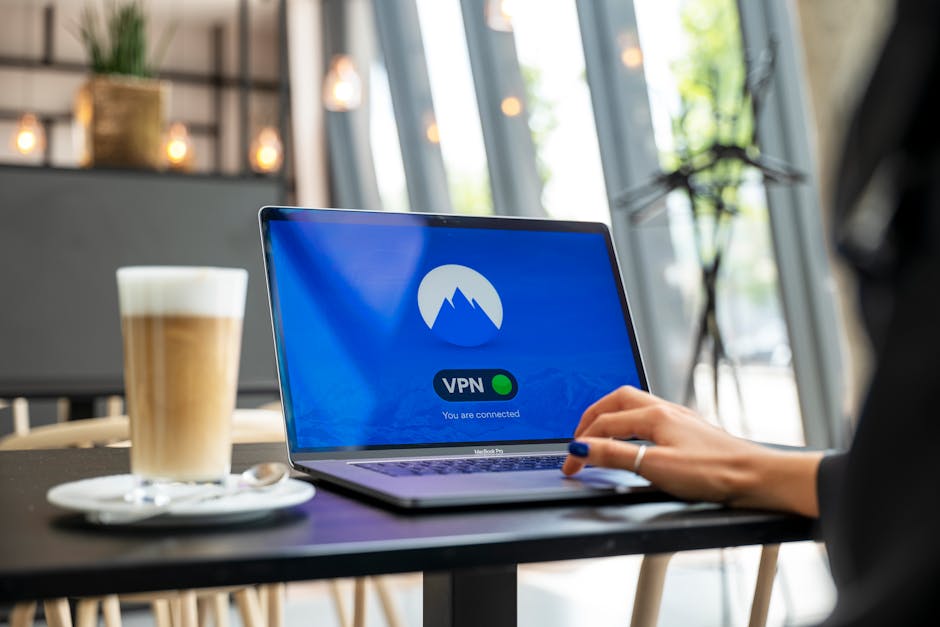
Your first and most immediate action should be to subscribe to a highly-rated, "no-logs" VPN service. Look for providers with strong encryption protocols (like OpenVPN or WireGuard), a proven track record, and a transparent privacy policy. Once installed, make it a habit to activate your VPN every time you connect to the internet, especially when using public Wi-Fi. Most VPN apps have a "connect on startup" or "always-on" feature; enable this to ensure continuous protection. This single step encrypts your internet traffic and masks your IP address, making it significantly harder for your ISP, advertisers, and even government agencies to track your online activities or pinpoint your physical location based on your network connection. Seriously, this is low-hanging fruit with massive privacy returns.
Practical Tip: Download and configure the VPN app on your phone. In the app settings, find and enable the "Kill Switch" feature, which automatically cuts your internet connection if the VPN drops, preventing accidental data leaks. Also, explore "Split Tunneling" if you want certain apps to bypass the VPN for specific reasons, though for maximum invisibility, keep everything tunneled.
-
Switch to End-to-End Encrypted Messaging Apps:
Migrate your primary communications to apps like Signal. Encourage your friends and family to join you. Signal, specifically, offers robust end-to-end encryption for all messages, calls, and media, and crucially, it collects minimal metadata. This means even Signal itself doesn't know who you're talking to or when, providing a level of privacy unmatched by most mainstream messaging platforms. Every conversation you have on these platforms is a private exchange, shielded from prying eyes, ensuring your digital whispers remain truly personal.
Practical Tip: Download Signal and begin inviting your closest contacts. Explore its features, like disappearing messages, to further enhance your privacy. The more people you convince to switch, the more effective this hack becomes for your overall communication privacy.
-
Harden Your Browser and Use Privacy-Focused Search Engines:
Ditch your default browser for a privacy-centric alternative. Install Brave Browser for its built-in ad and tracker blocking, or opt for a hardened Firefox setup with extensions like uBlock Origin, Privacy Badger, and HTTPS Everywhere. These tools actively block invasive scripts and trackers that build your online profile. Simultaneously, make DuckDuckGo your default search engine, as it famously doesn't track your searches or personal information, providing genuinely private search results free from personalized algorithmic manipulation.
Practical Tip: Go into your phone's settings, find the "Default Apps" or "Default Browser" option, and switch it to your new privacy-focused browser. Then, open your chosen browser's settings and ensure all tracking protection features are enabled and third-party cookies are blocked by default. Make it a routine to clear browser data (cookies, cache, history) at least once a week.
-
Master Your App Permissions and Location Services:
This is a critical, ongoing task. Go into your phone's main settings, navigate to "Privacy" or "Apps & Notifications," and meticulously review every single app's permissions. For location services, set access to "While Using the App" or "Ask Next Time" for almost everything, and "Never" for apps that have no legitimate need for your location (e.g., a calculator or note app). Do the same for camera, microphone, contacts, and photo library access. Be ruthless in revoking unnecessary permissions; if an app truly needs it, it will usually prompt you again.
Practical Tip: Dedicate 15-20 minutes once a month to this audit. It's surprising how many apps gain new permissions with updates, or how many you might have granted inadvertently. Pay special attention to apps that request "Always" access to location, as these are the biggest culprits for continuous tracking.
-
Embrace a Password Manager and Enable Multi-Factor Authentication (MFA):
Stop reusing passwords and relying on simple variations. Download and set up a reputable password manager (e.g., Bitwarden, 1Password, LastPass). Use it to generate unique, strong passwords for every single online account you possess. More importantly, enable MFA on every single account that offers it – especially email, banking, social media, and cloud storage. Prioritize authenticator apps (like Authy or Google Authenticator) over SMS-based 2FA for superior security, as SMS can be vulnerable to SIM-swapping attacks. This creates an almost impenetrable barrier against unauthorized access, even if your password is stolen.
Practical Tip: Start with your most critical accounts: email, banking, and primary social media. Enable MFA on these first. Then, gradually work your way through your less critical accounts. The initial setup takes time, but the long-term security benefits are immeasurable.
-
Avoid Public Wi-Fi or Use a VPN When Connected:
Treat public Wi-Fi networks as hostile environments. Whenever possible, use your phone's cellular data connection, which is inherently more secure, or a personal mobile hotspot. If you absolutely must connect to public Wi-Fi, ensure your VPN is activated and connected before you perform any sensitive activities like checking email, logging into accounts, or online banking. Public Wi-Fi is the digital equivalent of shouting your personal information in a crowded room; a VPN is your digital cone of silence.
Practical Tip: Develop a habit: public Wi-Fi = VPN ON. If your VPN has an auto-connect feature for unknown Wi-Fi networks, enable it. Consider turning off "Auto-Join" for public Wi-Fi networks in your phone's Wi-Fi settings to prevent accidental connections.
-
Regularly Review and Adjust Your Account Privacy Settings:
Beyond app permissions, delve into the specific privacy settings of your most used online accounts – Google, Apple, Meta (Facebook/Instagram), X, Amazon, etc. These platforms often have their own comprehensive privacy dashboards where you can control data collection, ad personalization, and information sharing with third parties. Disable personalized ads, restrict data retention, and review what information is publicly visible. These settings are often buried deep, but they are crucial for controlling your digital footprint outside of your device itself.
Practical Tip: Schedule a "Privacy Audit Day" once every quarter. Dedicate an hour or two to logging into your major online accounts and reviewing their privacy settings. Companies often update their policies and default settings, so regular checks are essential to maintain your desired level of invisibility. Think of it as spring cleaning for your digital life.
By diligently applying these seven tech hacks, you're not just making your phone "invisible online" in some abstract sense; you're actively constructing a robust, multi-layered defense against the pervasive surveillance that defines our modern digital age. You are taking back control, one thoughtful configuration and one conscious choice at a time. The path to digital privacy is an ongoing journey, but with these tools and practices, you’ll be well-equipped to navigate the digital wilderness with confidence, leaving behind only the faintest whisper of a digital ghost.