Having understood the landscape of threats and the critical role your router and encryption play, it's time to translate that knowledge into concrete, actionable steps. The goal isn't just to talk about security in abstract terms but to equip you with a practical blueprint for fortifying your Wi-Fi. Many of these changes can indeed be implemented in a matter of minutes, providing an immediate and substantial boost to your network's resilience. Think of this as your personal cybersecurity toolkit, designed to empower you to take control of your digital perimeter and transform your vulnerable Wi-Fi into a robust, defended space. We'll start with the most fundamental and impactful changes, then progress to more advanced configurations that offer additional layers of protection, ensuring that every angle is covered in your quest for a truly hardened network.
Your First Line of Defense Strong Passwords and Admin Privileges
The absolute cornerstone of any robust Wi-Fi security strategy begins with the passwords you use, both for accessing your wireless network itself and, crucially, for logging into your router's administrative interface. This might sound obvious, but the number of networks I've encountered that are still protected by easily guessable phrases or, worse, default manufacturer credentials, is staggering. For your Wi-Fi password, forget simple words, birthdays, or sequences like "12345678." These are the first things an attacker's brute-force tools will try. Instead, aim for a passphrase that is long, complex, and unique. A good rule of thumb is a minimum of 12-16 characters, incorporating a mix of uppercase and lowercase letters, numbers, and special symbols. Think of something like "MySecureWiFiIsAwesome!2024" – it’s memorable but difficult to guess. The longer and more varied your password, the exponentially harder it becomes for even the most powerful computers to crack, buying you invaluable time against a determined attacker.
Equally, if not more important, is changing the default administrator credentials for your router. As discussed, these defaults are universally known and represent an open door for anyone to seize control of your network. To do this, you'll typically need to connect to your router either wirelessly or via an Ethernet cable, open a web browser, and type in your router's IP address (often something like 192.168.1.1 or 192.168.0.1). Once logged in with the default credentials, navigate to the "Administration," "System," or "Security" section to find options for changing the username and password. Choose a new, strong, and unique combination, distinct from your Wi-Fi password. It's also highly advisable to disable any "remote management" features your router might have, which allow access to its settings from outside your local network. Unless you have a specific, compelling reason to use it and understand the inherent risks, keeping remote management off significantly reduces the attack surface, preventing external actors from even attempting to log into your router's control panel from afar, which is a common vector for compromise.
The importance of unique and strong passwords extends beyond just your Wi-Fi and router. Every device and service connected to your network represents a potential weak point. A compromised smart bulb or security camera, for instance, could provide a backdoor into your otherwise secure network if it uses a weak or default password. This holistic approach to password hygiene is critical. Consider using a reputable password manager to generate and store these complex passwords securely. Tools like LastPass, 1Password, or Bitwarden can create truly random, unguessable strings of characters and store them encrypted, requiring you to remember only one master password. This not only simplifies managing dozens of unique credentials but also ensures that you're consistently employing best practices across your entire digital ecosystem. Remember, a chain is only as strong as its weakest link, and in cybersecurity, that weak link is almost always a predictable or reused password.
Elevating Your Network's Fortification Beyond the Basics
Once you’ve shored up your password defenses, it’s time to look at the foundational settings that dictate how your Wi-Fi operates. The most impactful change here involves upgrading your Wi-Fi security protocol. If your router is still using WEP or WPA/TKIP, you are operating with severely outdated and vulnerable encryption. Your immediate priority should be to switch to WPA3, if both your router and your connected devices support it. WPA3 offers significant enhancements over its predecessors, including stronger encryption and better protection against offline dictionary attacks. To check and change this setting, log into your router's administrative interface, navigate to the "Wireless," "Security," or "Wi-Fi Settings" section. Look for an option labeled "Security Mode" or "Authentication Method." Select "WPA3 Personal" if available. If WPA3 isn't an option, then ensure you select "WPA2-PSK (AES)" or "WPA2/WPA3 Mixed Mode (AES)." Avoid "TKIP" or "WEP" entirely. Making this change ensures that your data is encrypted with the most robust algorithms available to your hardware, significantly increasing the effort required for an attacker to intercept and decrypt your traffic.
Another often-neglected, yet critically important, aspect of router security is keeping its firmware updated. Router firmware is essentially the operating system that runs your device, and just like any software, it can contain bugs, security vulnerabilities, or performance issues. Manufacturers regularly release updates to address these flaws and improve functionality. Failing to update your firmware leaves your router exposed to known exploits that hackers can easily leverage. Many modern routers have an auto-update feature, which is highly recommended to enable. If yours doesn't, you'll need to periodically log into your router's interface, navigate to a "Firmware Update," "System," or "Administration" section, and check for new versions. You might need to download the update file from the manufacturer's website and manually upload it. While this might seem like a minor chore, it's a crucial maintenance task that can prevent your router from becoming an unwitting participant in a botnet or a backdoor into your network. A router running outdated firmware is akin to a castle with a gaping hole in its wall, inviting all manner of unwelcome guests.
Consider also the practice of disabling the Wi-Fi Protected Setup (WPS) feature on your router. WPS was designed for convenience, allowing devices to connect to your Wi-Fi with the push of a button or by entering a short PIN. While seemingly helpful, WPS has a fundamental design flaw that makes it highly vulnerable to brute-force attacks on its 8-digit PIN. An attacker can repeatedly guess the PIN, and because of how the protocol works, they can often crack it in just a few hours, even if your main Wi-Fi password is strong. Once the PIN is cracked, the attacker gains access to your Wi-Fi password. Most security experts, including myself, strongly recommend disabling WPS entirely. You can usually find this option in the "Wireless" or "Security" settings of your router. The minor inconvenience of manually entering your Wi-Fi password when connecting new devices is a small price to pay for eliminating such a significant security weakness. It's a classic example of how a feature designed for user-friendliness can inadvertently become a critical vulnerability.
Advanced Maneuvers for the Vigilant Digital Guardian
For those looking to go beyond the basics and implement a truly layered defense, several advanced strategies can further harden your Wi-Fi network. One of the most effective is setting up a dedicated guest network. Most modern routers offer this feature, allowing you to create a separate Wi-Fi network with its own name and password, completely isolated from your main network. When friends or visitors come over, or if you have smart home devices that don't require access to your sensitive personal files, you can direct them to the guest network. This means that even if a guest's device is infected with malware or a visitor tries to snoop, they won't have direct access to your primary devices like your computer, NAS drives, or other sensitive IoT devices. It acts as a secure sandbox, containing potential threats and preventing them from spreading to the core of your digital life. This separation of concerns is a fundamental principle in network security, minimizing the blast radius of any potential breach and offering a significant peace of mind.
Another powerful, though often misunderstood, feature is MAC address filtering. Every network-enabled device (your phone, laptop, smart TV, etc.) has a unique Media Access Control (MAC) address. MAC filtering allows you to configure your router to only permit devices with specific, pre-approved MAC addresses to connect to your Wi-Fi. While this adds a layer of defense, it’s important to understand its limitations. MAC addresses can be spoofed, meaning a determined attacker can mimic the MAC address of an authorized device to gain access. Therefore, MAC filtering should not be seen as a standalone security solution but rather as an additional hurdle that an attacker must overcome. It’s a good supplementary measure, particularly for small networks with a fixed number of devices, but it should always be used in conjunction with strong encryption and passwords. To implement it, you'll need to find the MAC address of each device you want to allow on your network and then manually add them to your router's MAC filtering list, usually found under "Wireless" or "Security" settings.
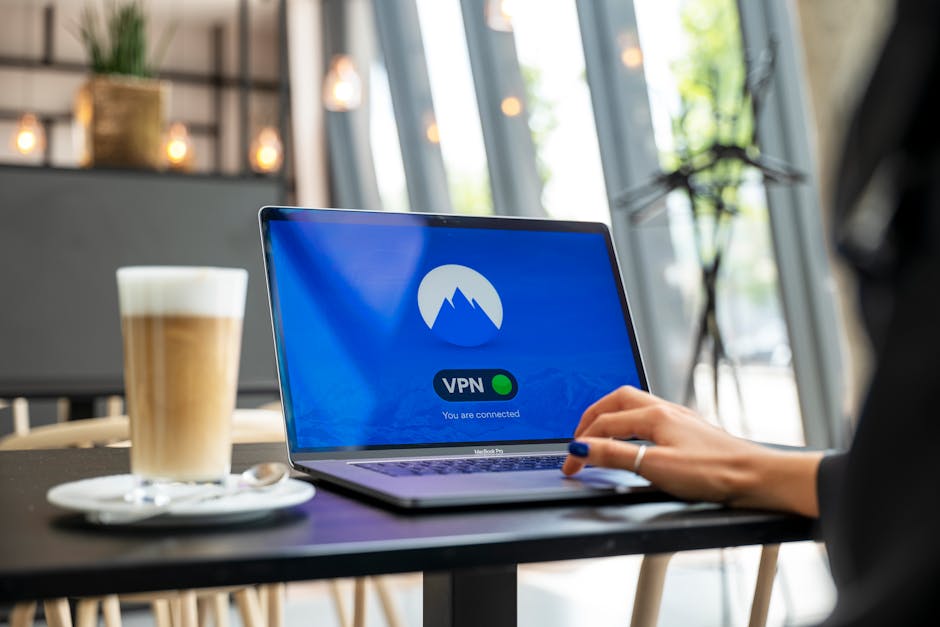
Finally, consider the role of a Virtual Private Network (VPN) as an additional layer of protection, even on a highly secure Wi-Fi network. While your Wi-Fi encryption protects your data from being intercepted between your device and your router, a VPN encrypts your traffic from your device all the way to a secure server operated by the VPN provider. This means that even if your Wi-Fi network were somehow compromised (perhaps by a zero-day exploit or a sophisticated insider threat), your internet traffic would remain encrypted and private, rendering it unreadable to any eavesdropper. Some advanced routers even allow you to install VPN software directly, so every device connected to your network automatically benefits from the VPN's protection. This holistic approach, combining robust Wi-Fi security with end-to-end VPN encryption, creates a formidable defense against a wide array of cyber threats, ensuring that your online activities remain private and secure, regardless of the underlying network's vulnerabilities. It’s about building multiple layers of defense, so if one fails, another is there to catch you, embodying the principle of "defense in depth" that is central to all effective cybersecurity strategies.