Building Your Digital Fortress Practical Steps for Unshakeable Security
Now that we've navigated the treacherous waters of online threats and understood the pervasive nature of our digital footprint, it’s time to equip ourselves with the tools and knowledge to build a robust defense. Securing your online presence isn't about being paranoid; it's about being prepared, proactive, and pragmatic. Think of it as constructing a multi-layered fortress around your digital life, where each layer offers an additional safeguard against potential incursions. There’s no single magic bullet, but rather a combination of smart habits, essential tools, and a healthy dose of skepticism that collectively create a formidable barrier. Let's delve into the actionable strategies you can implement right now to significantly bolster your digital resilience and reclaim control over your online identity.
Forging Impenetrable Passwords and Embracing the Managerial Approach
The humble password remains the first line of defense for nearly every online account, yet it's often the weakest link. Far too many people still rely on easily guessable passwords like "123456," "password," or their pet's name, making them prime targets for brute-force attacks or dictionary attacks. The key to strong passwords lies in length, complexity, and uniqueness. A truly strong password should be at least 12-16 characters long, a mix of uppercase and lowercase letters, numbers, and special characters. However, memorizing dozens of such complex, unique passwords for every single account is an impossible task for mere mortals, and that's precisely where a robust password manager becomes an indispensable ally. Forget the old advice of changing your passwords regularly; the current best practice is to have long, unique passwords for every site and to only change them if there's a suspected breach.
A password manager acts as an encrypted digital vault, securely storing all your login credentials, generating new, unguessable passwords, and even autofilling them for you when you visit a recognized site. Popular options like LastPass, 1Password, Bitwarden, and Dashlane offer excellent security features, cross-device synchronization, and often come with built-in audit tools that flag weak or reused passwords. The process is straightforward: you create one extremely strong "master password" to unlock the manager, and it handles the rest. This not only enhances your security by ensuring every account has a unique, complex password but also dramatically improves your convenience, eliminating the need to constantly reset forgotten logins. It’s a fundamental shift from relying on human memory to leveraging secure technology, transforming your password strategy from a vulnerability into a powerful protective layer.
Elevating Your Security with Multi-Factor Authentication (MFA)
Even the strongest password can theoretically be compromised, whether through a sophisticated phishing attack, a data breach, or even a keylogger on a public computer. This is where Multi-Factor Authentication (MFA), sometimes called Two-Factor Authentication (2FA), steps in as a critical second line of defense. MFA requires you to provide two or more verification factors to gain access to an account, even if a cybercriminal manages to steal your password. It's like needing both a key and a fingerprint to open a vault. This simple yet incredibly effective measure can thwart a vast majority of account takeover attempts, making it an absolute must-have for every online service that offers it, especially for critical accounts like email, banking, and social media.
There are several common types of MFA, each offering varying levels of security. The most common is a code sent via SMS to your phone, but while convenient, it’s also the least secure due to potential SIM-swapping attacks. Far more robust options include time-based one-time password (TOTP) apps like Google Authenticator or Authy, which generate a new, unique code every 30-60 seconds directly on your device, independent of your phone number. Hardware security keys, such as YubiKey, represent the pinnacle of consumer-grade MFA, requiring a physical device to be present and often touched to authorize a login. Setting up MFA is usually found in the security settings of your online accounts and typically involves scanning a QR code with an authenticator app. Make it a personal mission to enable MFA on every single service that supports it; it's arguably the single most impactful step you can take to prevent unauthorized access to your digital life.
The Virtual Shield Unleashing the Power of a VPN
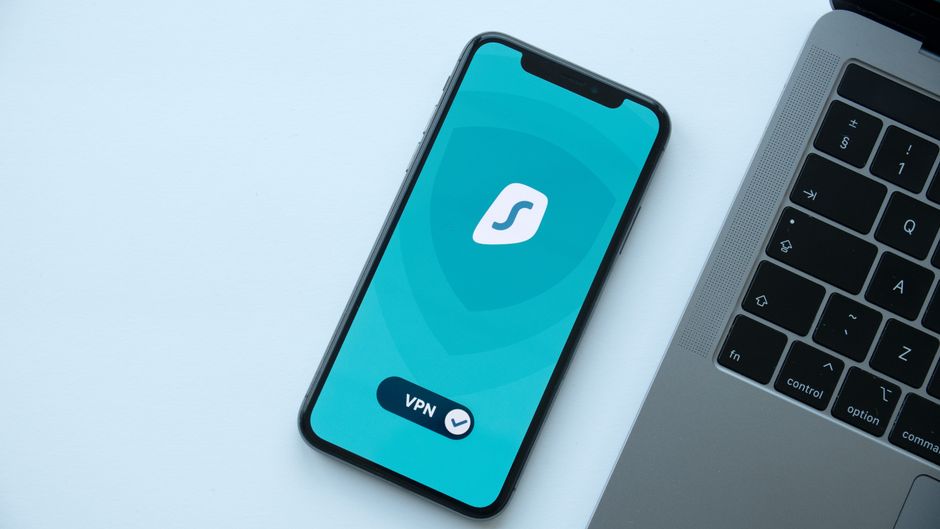
Imagine browsing the internet with a cloak of invisibility, where your online activities are shielded from prying eyes, your location is masked, and your data is encrypted. That's essentially what a Virtual Private Network (VPN) offers. A VPN creates a secure, encrypted tunnel between your device and a remote server operated by the VPN provider. All your internet traffic then flows through this tunnel, making it appear as though you are browsing from the VPN server's location, rather than your actual physical location. This provides several crucial layers of security and privacy, especially when you're connecting to public Wi-Fi networks, which are notorious for being unsecured and ripe for data interception by malicious actors.
When you connect to a public Wi-Fi hotspot at a coffee shop or airport, your data can be easily intercepted by anyone else on the same network using readily available tools. A VPN encrypts your traffic before it leaves your device, rendering it unreadable to snoopers, even on an unsecured network. Beyond basic security, a VPN also enhances your privacy by masking your real IP address, making it much harder for websites, advertisers, and even your Internet Service Provider (ISP) to track your online activities and build a detailed profile of your browsing habits. When choosing a VPN, look for providers with a strict no-logs policy (meaning they don't record your online activities), strong encryption standards (like AES-256), a wide network of servers, and a good reputation for reliability and customer support. Services like NordVPN, ExpressVPN, and Surfshark are popular choices for their robust features and user-friendly interfaces. Make using a VPN a habit, especially when you're away from your secure home network, to ensure your online communications remain private and protected.
Navigating the Web with Vigilance Smart Browsing Habits and Privacy Tools
Our web browser is often our primary gateway to the internet, and how we use it significantly impacts our online security and privacy. Adopting smart browsing habits and leveraging available privacy tools can dramatically reduce your exposure to tracking, malware, and intrusive advertising. Start by choosing a privacy-focused browser like Brave or Firefox, which often come with built-in tracking protection and ad blockers. If you prefer Chrome, make sure to install reputable extensions that enhance privacy and block ads, such as uBlock Origin or Privacy Badger. These tools not only make your browsing experience faster and less cluttered but also prevent third-party trackers from collecting data about your online behavior across different websites.
Furthermore, be mindful of the information you share on websites and the permissions you grant to browser extensions. Before installing any extension, review its requested permissions carefully; an extension for a simple task like spell-checking probably doesn't need access to "all your data on all websites." Regularly clear your browser's cache and cookies, or configure your browser to do so automatically, to limit the amount of tracking data stored on your device. While "Incognito Mode" or "Private Browsing" can prevent your browsing history from being saved locally, it does *not* make you anonymous online or protect you from your ISP, employer, or the websites you visit. For true privacy, it needs to be combined with a VPN. Always pay attention to the padlock icon in your browser's address bar, indicating an HTTPS connection, which means your communication with that website is encrypted. If you see "Not Secure" or no padlock, be extremely cautious about entering any sensitive information.
The Unsung Heroes Software Updates and System Hygiene
It might seem tedious, but keeping your operating system, web browser, applications, and antivirus software consistently updated is one of the most fundamental and critical aspects of maintaining a secure online presence. Software updates aren't just about new features; they frequently include crucial security patches that fix vulnerabilities discovered by developers or reported by security researchers. Cybercriminals actively scan for systems running outdated software because they know these unpatched flaws provide easy entry points for malware, ransomware, and other attacks. Neglecting updates is akin to leaving your front door wide open in a bad neighborhood.
Make it a habit to enable automatic updates wherever possible for your operating system (Windows, macOS, Linux, Android, iOS) and major applications. For software that doesn't offer automatic updates, set a regular reminder to check for and install them manually. Beyond updates, maintain good system hygiene by regularly running full scans with reputable antivirus and anti-malware software (like Malwarebytes, Bitdefender, or Kaspersky). These tools can detect and remove malicious programs that might have slipped through your initial defenses. Also, periodically review the applications installed on your devices and uninstall anything you don't recognize or no longer use; outdated or unnecessary software can become a security liability. A clean, updated system is a secure system, and this proactive approach significantly reduces your attack surface, making it much harder for cybercriminals to gain a foothold.
Cultivating a Skeptical Mindset Identifying and Dodging Phishing Attempts
Given the sophistication of modern phishing attacks, developing a keen eye for red flags and adopting a skeptical mindset is arguably your most potent defense. Remember, phishing attempts are designed to manipulate your emotions – fear, urgency, curiosity, greed – to trick you into making a mistake. The key is to pause, breathe, and scrutinize any unsolicited or suspicious communication before taking action. Never click on links or open attachments from unknown or unexpected senders. Even if the sender appears to be legitimate, if something feels off, it probably is.
Here’s a quick checklist to train your inner detective:
- Check the Sender's Email Address: Does it exactly match the official domain? A common trick is to use a similar-looking domain (e.g., "amaz0n.com" instead of "amazon.com").
- Hover Over Links (Don't Click!): Before clicking, hover your mouse cursor over any link to reveal the actual URL. If it doesn't match the expected destination, or looks suspicious, don't click it. On mobile, a long press often reveals the URL.
- Look for Grammatical Errors and Typos: While sophisticated phishing emails are often flawless, many still contain subtle errors that legitimate organizations rarely make.
- Sense of Urgency or Threat: Phishing emails often try to scare or rush you into action, threatening account closure, legal action, or loss of access if you don't respond immediately. Legitimate organizations typically provide ample time for action.
- Requests for Sensitive Information: Be extremely wary of emails asking for your password, social security number, credit card details, or other sensitive PII. Legitimate companies will rarely, if ever, ask for this information via email.
- Unexpected Attachments: Never open an attachment you weren't expecting, even if it appears to be from someone you know. Their account could be compromised.
Fortifying Your Home Network Securing Your Digital Hub
Your home Wi-Fi network is the gateway through which all your devices connect to the internet, making its security paramount. A poorly secured router is an open invitation for intruders to access your network, monitor your traffic, or even launch attacks against your connected devices. The first and most crucial step is to change the default username and password of your router immediately after installation. These defaults are often publicly known and easily exploited. Choose a strong, unique password for your router's administrative interface, just as you would for any other critical online account.
Furthermore, ensure your Wi-Fi network uses WPA2 or, even better, WPA3 encryption. Most modern routers default to this, but it’s worth checking your router's settings. Avoid WEP, which is easily cracked. Disable remote access to your router's settings from the internet, a feature rarely needed by home users but often exploited by attackers. Consider setting up a separate guest Wi-Fi network for visitors. This isolates your main network and its connected devices from any potential vulnerabilities brought in by a guest's device, adding an extra layer of protection. Regularly check for firmware updates for your router, as these often contain security patches. While router security might seem daunting, it's a foundational element of your overall digital defense, safeguarding not just your data but every device connected within your home.
The Art of Digital Decluttering and Data Minimization
In our digital lives, less can often be more, especially when it comes to the data we accumulate and the accounts we maintain. Digital decluttering and practicing data minimization are powerful strategies for reducing your attack surface and enhancing your overall privacy. Start by conducting a thorough audit of your online accounts. How many old social media profiles, defunct e-commerce accounts, or forgotten forum logins do you have floating around? Each one represents a potential point of compromise if it were to be breached. If an account is no longer needed, close it properly, ensuring that any associated personal data is deleted where possible.
Beyond accounts, think about the data you voluntarily share. Before signing up for a new service or app, consider if you truly need to provide all the requested information. Can you use a pseudonym or a temporary email address for non-critical services? Review the privacy settings on your social media accounts and other platforms, restricting who can see your posts, photos, and personal information. Be cautious about third-party apps requesting access to your social media profiles or other personal data. The less personal information that exists about you across the internet, the smaller your digital footprint becomes, and the less attractive a target you are for identity thieves and data brokers. This proactive approach to managing your digital identity empowers you to take control, rather than passively allowing your data to proliferate unchecked across the vast expanse of the internet.