Taking Back Control Practical Steps to Fortify Your Browser's Defenses
Understanding the limitations of your browser's "private" mode is the first crucial step; the next is empowering yourself with actionable strategies to genuinely enhance your online privacy. It’s not about abandoning your browser or retreating from the internet, but rather about adopting a more informed, proactive stance. Think of your browser as a powerful vehicle; knowing its quirks and vulnerabilities allows you to drive it more safely and securely. The goal here is not necessarily perfect anonymity, which is an elusive ideal, but rather a significant reduction in your digital footprint and a substantial increase in your control over personal data. By implementing a few key changes and adopting better habits, you can transform your browsing experience from a constant broadcast into a more discreet and protected journey. Let's explore practical, step-by-step measures you can take to mitigate the five shocking exposures we've discussed and build a stronger, more private online presence.
The journey to better browser privacy begins with a fundamental shift in mindset: assume you are always being observed unless you take specific, deliberate actions to prevent it. This isn't paranoia; it's a realistic assessment of the modern digital landscape. Relying on default settings or the superficial promises of "private mode" is no longer sufficient. True privacy requires a layered approach, combining smart browser configurations with robust external tools and vigilant user behavior. It's an ongoing process, not a one-time fix, as privacy threats and tracking technologies constantly evolve. However, the effort is well worth it, providing peace of mind and significantly reducing your exposure to data exploitation. Let's dive into the specifics, offering concrete advice that moves beyond mere awareness to practical, impactful change. These aren't rigid rules but rather a toolkit of options designed to help you reclaim your digital autonomy in a meaningful way, ensuring that your online activities remain as private as you intend them to be.
Mitigating Browser Fingerprinting's Invisible Mark
Combating browser fingerprinting requires a multi-pronged approach, as it's designed to be stealthy and persistent. Simply using private mode won't help here. One of the most effective strategies is to use browsers specifically designed with anti-fingerprinting measures. The Tor Browser is the gold standard for this, as it aims to make all users look identical, significantly reducing the uniqueness of your fingerprint. While Tor Browser might be too slow or inconvenient for everyday use, it's an excellent choice for highly sensitive browsing. For more general use, browsers like Brave and Firefox (with enhanced tracking protection settings enabled) offer built-in protections against various fingerprinting techniques, including Canvas fingerprinting and font enumeration. Brave, for instance, randomizes certain aspects of your browser fingerprint, making it harder for trackers to identify you uniquely. Firefox allows you to set its Enhanced Tracking Protection to "Strict," which blocks many known fingerprinting scripts.
Beyond browser choice, consider browser extensions that specifically target fingerprinting. Extensions like CanvasBlocker for Firefox or various privacy-focused extensions that enhance your browser's native anti-fingerprinting capabilities can add an extra layer of defense. These tools often work by injecting noise into the data points that fingerprinting scripts collect, making your browser appear less unique or even intentionally inconsistent. Another crucial step is to be mindful of the number and type of extensions you install, as each extension adds to your browser's unique signature. A minimalist approach, only installing absolutely essential extensions, can reduce the number of unique identifiers available for fingerprinting. Regularly reviewing and removing unused or suspicious extensions is also vital. Remember, the goal is to blend in with a larger crowd of similar browser configurations, making it harder for individual trackers to single you out from the digital throng.
Shielding Your DNS Queries from Prying Eyes
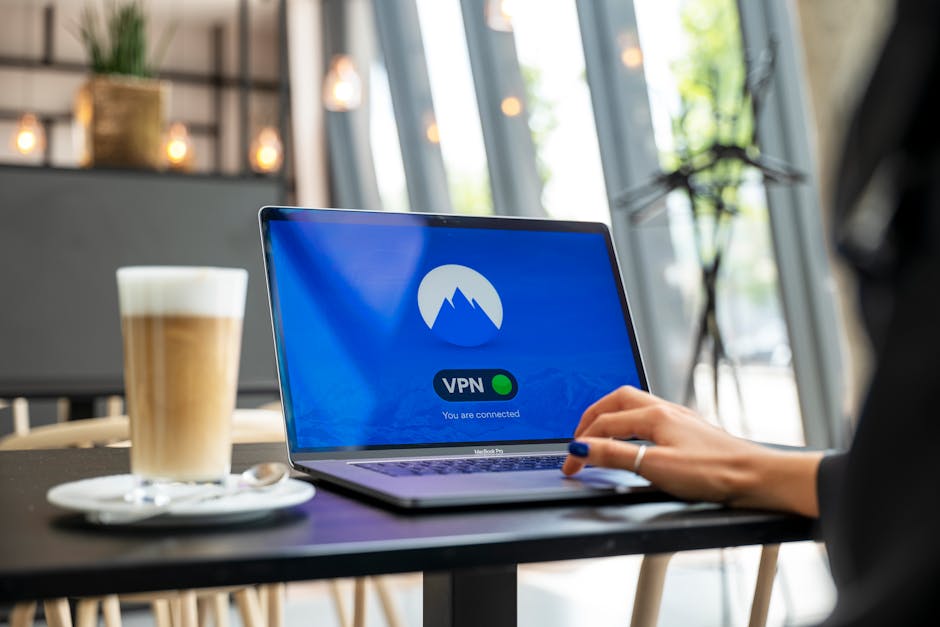
To prevent your ISP from logging your entire browsing history via DNS queries, the most effective solution is to encrypt your DNS traffic and route it through a third-party DNS resolver. The simplest and most robust method for this is to use a reputable Virtual Private Network (VPN) service. When you connect to a VPN, all your internet traffic, including DNS requests, is encrypted and routed through the VPN provider's servers. This means your ISP only sees an encrypted connection to the VPN server, not the individual websites you visit. The VPN provider then handles the DNS resolution, ensuring that your ISP has no visibility into your specific browsing activities. Choose a VPN provider with a strong no-logs policy and a proven track record of privacy and security to ensure your DNS queries are truly protected.
If a VPN isn't an option or you want an additional layer of protection, you can manually configure your device or router to use DNS over HTTPS (DoH) or DNS over TLS (DoT). These protocols encrypt your DNS queries, preventing your ISP (or anyone else on your local network) from easily sniffing them. Many modern browsers, including Firefox and Chrome, offer built-in DoH support, allowing you to switch from your ISP's default DNS to privacy-focused alternatives like Cloudflare (1.1.1.1) or Google Public DNS (8.8.8.8). While this encrypts your DNS lookups, it doesn't hide your IP address or your overall traffic from your ISP, which a VPN does. However, it's a significant improvement over unencrypted DNS and a crucial step for enhancing privacy, ensuring that your specific website requests remain private between your browser and the chosen DNS resolver, rather than being openly broadcast to your ISP.
Controlling Persistent Permissions of Extensions and Add-ons
Reining in the power of browser extensions is critical for privacy. The first step is to conduct a thorough audit of all your installed extensions. Go to your browser's extension management page (e.g., `chrome://extensions` for Chrome, `about:addons` for Firefox) and meticulously review each one. Ask yourself: "Do I really need this? What permissions has it requested? Is this developer trustworthy?" Remove any extensions you don't actively use or those that seem suspicious. Less is definitely more when it comes to extensions, as each one is a potential vulnerability and a contributor to your browser fingerprint.
For the extensions you decide to keep, delve into their individual settings. Many browsers now offer granular control over extension permissions. For instance, you can often configure an extension to "only run on click" or "only on specific sites" rather than "on all sites." Crucially, look for options to disable extensions in private browsing mode. This is often a checkbox in the extension's settings or a global browser setting. By explicitly preventing extensions from running in private windows, you ensure that your intended private session truly remains isolated from these potentially intrusive tools. Regularly update your extensions, as developers often release patches for security vulnerabilities. Furthermore, consider using browser containers, like Firefox's Multi-Account Containers, which allow you to isolate different browsing sessions and their associated cookies and extensions, preventing cross-site tracking and containing the scope of extension permissions to specific "containers."
Blocking WebRTC's Hidden IP Address Leakage
Preventing WebRTC leaks requires specific actions, as private mode offers no defense. The most straightforward approach is to use a VPN service that includes WebRTC leak protection. Many reputable VPNs have built-in features that automatically block or disable WebRTC's ability to expose your real IP address. Before choosing a VPN, always check their features and test for WebRTC leaks using online tools (simply search for "WebRTC leak test") while connected to their service. This ensures that your VPN is effectively doing its job and not being circumvented by this protocol.
If you're not using a VPN, or want an additional layer of protection, you can often disable WebRTC directly within your browser's advanced settings or through specific extensions. In Firefox, you can type `about:config` into the address bar, search for `media.peerconnection.enabled`, and set its value to `false`. This will completely disable WebRTC. For Chrome and other Chromium-based browsers, there isn't a direct setting to disable WebRTC entirely without an extension. However, extensions like "WebRTC Network Limiter" or "uBlock Origin" (with specific filters) can help mitigate the leak by preventing WebRTC from exposing non-proxied IP addresses. Be aware that disabling WebRTC might break some legitimate web applications that rely on it for video calls or peer-to-peer functionality. Weigh the trade-offs between privacy and functionality based on your specific needs, but for maximum privacy, addressing WebRTC leaks is a non-negotiable step.
Managing Auto-Fill and Saved Credentials Wisely
The convenience of auto-fill and saved passwords can be a privacy hazard if not managed with extreme caution. The most critical step is to stop saving passwords directly in your browser. While browsers have improved their built-in password managers, a dedicated, third-party password manager (like Bitwarden, LastPass, or 1Password) offers superior security, cross-device synchronization, and often more robust protection against phishing and data breaches. These managers typically require a master password and encrypt your credentials, storing them securely outside the browser's less protected environment. They also offer features like strong password generation and two-factor authentication integration, significantly enhancing your overall security posture.
Beyond passwords, disable auto-fill for personal information and credit card details in your browser settings. Go into your browser's privacy and security settings and find the sections for "Autofill" or "Payment methods." Clear any saved addresses, phone numbers, and credit card information. While it might mean a few extra keystrokes, manually entering this sensitive data significantly reduces the risk of it being accidentally exposed or exploited by malicious websites. Be particularly wary of forms on unfamiliar websites that request an unusual amount of personal data. Always scrutinize what information you're providing and whether it's truly necessary. By taking these deliberate steps, you transform auto-fill from a potential liability into a feature that you consciously control, ensuring that your sensitive personal and financial data remains securely in your hands, not floating around in your browser's memory, vulnerable to unseen threats.
The journey to enhanced online privacy is an ongoing one, demanding vigilance and a willingness to adapt. The digital world is constantly evolving, and with it, the methods used to track and profile us. By understanding that your browser's "private" mode is merely a superficial shield, and by taking proactive steps to address the deeper, often hidden, configurations and vulnerabilities we've discussed, you reclaim a significant portion of your digital autonomy. It's about empowering yourself with knowledge, making conscious choices, and implementing robust tools that go beyond the basic promises of your browser. Your online life is a reflection of your real life; it deserves the same level of care and protection. Don't fall for the illusion of privacy; build a reality of security and control, one informed decision at a time.