We’ve dissected the core vulnerabilities of the humble Wi-Fi router, explored the critical importance of strong authentication, and delved into the intricacies of firmware updates and advanced security settings. We’ve also unveiled the power of network segmentation and traffic obfuscation, effectively camouflaging your digital presence. Now, it's time to consolidate this knowledge into a clear, actionable roadmap. This isn't just theory; it's a practical guide to transforming your home network from a potential digital liability into a robust, private, and resilient fortress. Think of this as your personal checklist, a series of steps you can take today to significantly enhance your online privacy and security, making your home network truly invisible to the casual hacker and a formidable challenge for even the most determined cybercriminal. It's about taking back control and ensuring your digital home is as secure as your physical one.
Your Blueprint for Digital Fortification A Step-by-Step Action Plan
Embarking on this journey to secure your home network might seem daunting at first, given the depth of information we've covered. However, it's crucial to remember that each step, no matter how small, contributes to a significantly more secure environment. We're not aiming for theoretical perfection, but practical, impactful improvements that dramatically reduce your risk profile. The following actions are laid out in a logical sequence, building one upon the other to create a comprehensive defense. You don't need to implement everything at once, but tackling these points systematically will yield the greatest benefits. Each point is designed to be accessible, even for those who aren't tech experts, offering a clear path to a more private and protected digital life. So, grab a cup of coffee, set aside some dedicated time, and let's turn these insights into actionable security measures that will serve you and your family well in the interconnected world.
The First Order of Business Locking Down Administrative Access
Your router's administrative interface is the control center of your entire network, and securing it is paramount. Start by logging into your router's configuration page. You typically do this by opening a web browser and typing in your router's IP address (often 192.168.1.1 or 192.168.0.1). If you don't know it, check your router's manual or look for a sticker on the device itself. Once logged in, immediately locate the section for changing the administrator password. This is distinct from your Wi-Fi password. Choose a password that is exceptionally strong: a minimum of 16 characters, a mix of uppercase and lowercase letters, numbers, and special symbols. Avoid anything personal or easily guessable. Use a password manager to generate and securely store this complex password. This single action closes the most common and dangerous backdoor into your network, preventing unauthorized individuals from reconfiguring your router, installing malicious firmware, or monitoring your traffic. It's the digital equivalent of changing the locks on your front door when you move into a new house.
Next, while still in the router's administrative interface, navigate to your Wi-Fi or Wireless settings. Here, you'll want to change your Wi-Fi password to another unique, strong password, following the same complexity guidelines as your admin password. Ensure your network is using WPA2-Personal (AES) encryption at a minimum, or WPA3 if your router and devices support it. Avoid older, weaker protocols like WEP or WPA/TKIP. This step secures the actual wireless connection, preventing unauthorized devices from joining your network. Furthermore, look for an option to disable Wi-Fi Protected Setup (WPS). This feature, while convenient, has known vulnerabilities that can be exploited to crack your Wi-Fi password. Disabling it removes a significant attack vector. These foundational password changes are the absolute minimum you should do, and they provide an immediate and substantial boost to your network's overall security posture. Without strong, unique passwords for both administrative access and Wi-Fi connectivity, all other security measures are built upon a shaky foundation, leaving your network vulnerable to even basic hacking attempts.
Maintaining Your Digital Guardian Regular Firmware Updates and Configuration Tweaks
Your router's firmware is its operating system, and like any software, it needs regular updates to patch vulnerabilities and improve performance. Make it a habit to check for firmware updates at least once every few months. Log into your router's administrative panel and look for sections like "Administration," "System Tools," or "Firmware Upgrade." Most modern routers offer an "online check" or "auto-update" feature. If not, you may need to download the latest firmware file from your router manufacturer's official website and upload it manually. Always ensure you download firmware only from the official source to avoid malicious versions. Applying these updates is crucial; they often contain critical security patches that close newly discovered loopholes exploited by cybercriminals. Think of it as getting vaccinations for your digital gatekeeper, protecting it against the latest strains of digital diseases that are constantly evolving in the wild.
While still in your router's settings, take the opportunity to disable remote management. This feature allows access to your router's interface from outside your home network, which is rarely needed by home users and poses a significant security risk. Look for this option under "Security," "Administration," or "Advanced Settings" and ensure it is turned off. If you ever need to access your router remotely, consider more secure methods like a VPN to your home network, rather than leaving a direct port open to the internet. Additionally, consider changing your router's default internal IP address range. Instead of the common 192.168.1.x or 192.168.0.x, change it to something less common, like 192.168.50.x or 10.0.0.x. This adds a subtle layer of obscurity, making it slightly harder for an attacker who has gained internal access to immediately map your network structure. Finally, review your router's firewall settings. Ensure it's active and configured to block unsolicited incoming connections. Be extremely cautious with port forwarding; only enable it for services that absolutely require it, and ensure the device behind the forwarded port is fully patched and secure.
"Security is not a product, but a process. Regular updates and vigilant configuration are the cornerstones of a resilient home network." – A widely accepted principle in the cybersecurity community, highlighting the ongoing nature of digital defense.
The Art of Digital Camouflage Making Your Network Harder to Spot
Now, let's put on our digital camouflage and make your network less conspicuous. The first step here is to disable your router's SSID broadcast. This will prevent your network name from appearing in the list of available Wi-Fi networks on devices within range. You'll typically find this option under your router's "Wireless" or "Wi-Fi" settings, often labeled "Enable SSID Broadcast" or "Hide SSID." Uncheck or disable this option. Remember, this doesn't make your network entirely invisible, but it removes it from the immediate view of casual scanners and automated tools, making it a less attractive target. To connect new devices, you'll need to manually enter your network's exact SSID and password. This minor inconvenience is a small price to pay for increased privacy and a reduced attack surface, effectively forcing any potential intruder to know your network's name before they can even attempt to connect, adding a layer of obscurity.
Next, leverage your router's guest network feature. This is a critical step for segmenting your home network. Create a separate guest network with its own unique, strong password. Direct all your smart home devices (IoT gadgets like smart lights, thermostats, cameras, voice assistants) and any visitor devices to connect exclusively to this guest network. This isolates these potentially vulnerable devices from your main network where your computers, financial data, and other sensitive information reside. If an IoT device on your guest network is compromised, the attacker's access is contained within that segmented network, preventing them from easily jumping to your primary devices. This acts as a digital quarantine zone, limiting the blast radius of any potential breach. For advanced users with supporting routers, explore setting up VLANs to create even more granular segmentation, providing maximum isolation between different categories of devices on your network.
The Ultimate Shield and Ongoing Vigilance Router-Level VPN and Monitoring
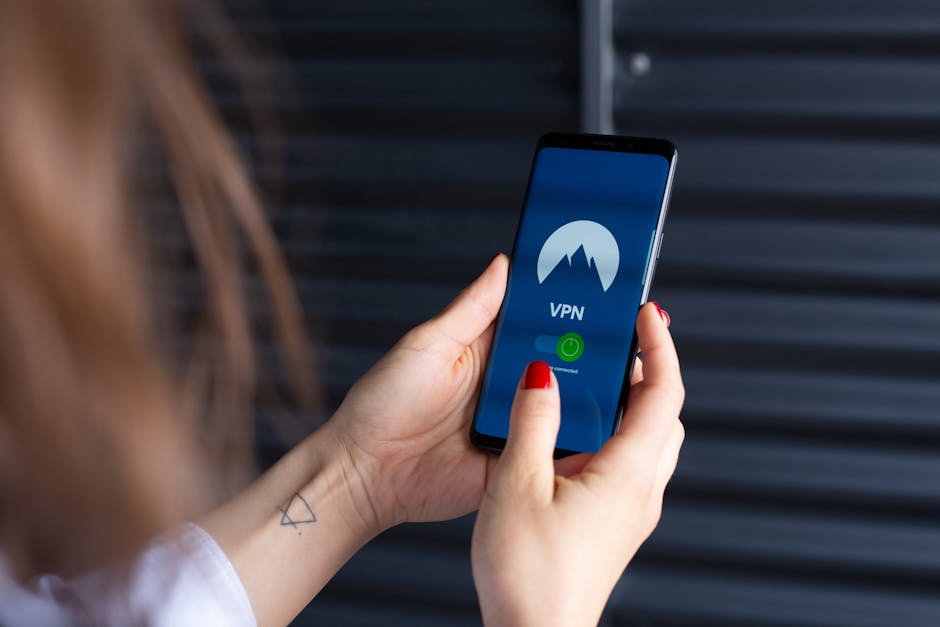
For the ultimate layer of privacy and security, consider configuring a VPN directly on your router. This ensures that all devices connected to your network, including those that can't run a VPN client themselves (like smart TVs or some IoT devices), benefit from encrypted internet traffic and IP address masking. Research VPN providers that support router configurations and check if your router model is compatible. This often requires flashing custom firmware (like OpenWRT or DD-WRT) or purchasing a VPN-ready router. While more technically involved, a router-level VPN effectively makes your entire home network's external internet traffic anonymous and encrypted, significantly enhancing your privacy and making it much harder for external entities to track your online activities or identify your physical location based on your IP address. It's the final piece of the invisibility cloak, ensuring that what leaves your network is as obscured as its internal workings.
Finally, remember that cybersecurity is an ongoing process, not a destination. Regularly monitor your router's logs for unusual activity, such as unknown devices connecting, repeated failed login attempts, or unexpected spikes in data usage. Many routers have a "System Log" or "Traffic Monitor" section in their administrative interface. Periodically review these logs for anything suspicious. Consider using network scanning tools (like Fing for mobile, or Nmap for desktop users) to occasionally scan your own network from an external perspective. This can help you identify any accidental open ports or unexpected devices that might have slipped onto your network. Stay informed about cybersecurity news, especially regarding router vulnerabilities, and be prepared to adapt your defenses as new threats emerge. By embracing these actionable steps and maintaining a vigilant mindset, you're not just making your Wi-Fi router invisible; you're transforming your entire home network into a secure, private, and resilient digital sanctuary, empowering you to navigate the online world with confidence and peace of mind.