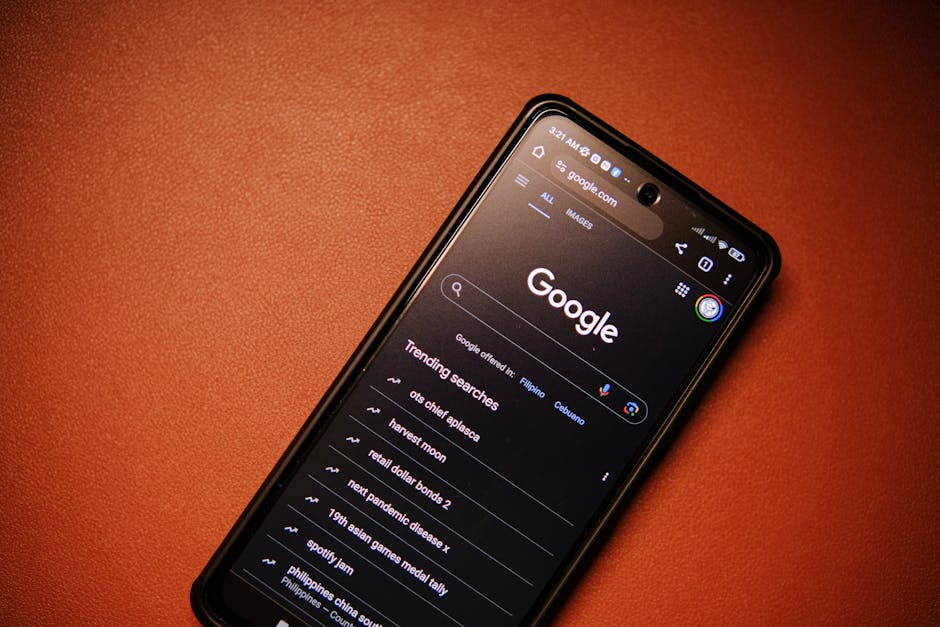
The implications of these sprawling activity logs extend beyond individual privacy to broader societal concerns. The aggregation of vast amounts of search queries, browsing history, and voice commands can be used to identify trends, predict behaviors, and even influence public opinion. When powerful entities possess such detailed insights into the collective consciousness, the potential for manipulation and control becomes a very real threat. Think about how search algorithms can subtly shape your worldview by prioritizing certain information, or how personalized recommendations can create echo chambers, reinforcing existing biases. Your individual data points, when combined with millions of others, contribute to a digital landscape that is increasingly designed to cater to, and subtly direct, your thoughts and actions. This makes the act of reviewing and managing your activity logs not just a personal privacy choice, but a small act of resistance against a system that seeks to understand and influence every aspect of your digital existence.
Moreover, the often-overlooked "Voice & Audio Activity" settings are particularly concerning. When you interact with voice assistants like Google Assistant or Siri, your commands are often recorded and stored, ostensibly to improve the service. However, these recordings can capture sensitive information, private conversations, or even accidental activations. In some documented cases, human contractors were found to be listening to these recordings for quality control, raising serious questions about the confidentiality of such interactions. While companies have largely moved to more anonymized and automated review processes, the fundamental act of recording your voice and linking it to your identity remains a privacy risk. It's a stark reminder that even seemingly ephemeral voice commands leave a lasting digital trace, a sonic fingerprint that can be analyzed, stored, and potentially misused. Taking control of these settings means deciding whether your spoken words become part of an ever-growing digital archive.
Fortifying Your Lock Screen Against Curious Eyes
Your phone’s lock screen is often seen as the primary barrier against unauthorized access. You’ve got your PIN, your fingerprint, your face ID, all designed to keep intruders out. But what many people fail to realize is that even with a locked screen, a surprising amount of sensitive information and functionality can still be accessed, turning this supposed fortress into a leaky sieve. Notifications, voice assistants, and even smart home controls can often be interacted with directly from the lock screen, providing a convenient shortcut for you, but also a potential backdoor for anyone who briefly gets their hands on your device. This isn't about sophisticated hacking; it's about opportunistic snooping, where a casual glance or a quick command can reveal deeply personal details or grant control over your connected environment.
Consider the humble notification. By default, many phones display full notification content on the lock screen. This means that a text message from a bank about a transaction, an email containing a sensitive document, or a message from a private chat app can be fully visible to anyone who picks up your phone, even for a moment. This isn't just an annoyance; it's a significant privacy breach. Imagine a colleague seeing a private health appointment reminder, or a stranger glancing at a financial alert. The potential for embarrassment, information leakage, or even social engineering is immense. While the convenience of seeing all your notifications at a glance is undeniable, the trade-off in terms of exposing your personal life to casual observers is simply too high. It transforms your lock screen from a secure gateway into a billboard for your private affairs, broadcasting information that should remain strictly confidential.
Then there are the voice assistants—Siri and Google Assistant—which, by default, often respond to commands even when your phone is locked. While convenient for quick queries or setting alarms, this functionality also presents a glaring security loophole. Anyone can pick up your phone and ask Siri or Assistant to "read my latest messages," "call Mom," "open my photos," or even "what's my next appointment?" Depending on your specific settings and the apps involved, these commands can reveal personal information, initiate calls, or even launch apps, effectively bypassing your lock screen security. This isn't a flaw in the technology itself, but rather a default configuration that prioritizes ease of use over stringent privacy. The idea that a stranger could potentially access your contacts, calendar, or even initiate communications simply by speaking to your locked phone is a chilling thought, undermining the very purpose of having a lock screen in the first place.
Beyond notifications and voice assistants, many modern smartphones integrate with smart home devices, allowing for quick control directly from the lock screen. While being able to turn off your lights or adjust your thermostat without unlocking your phone seems like a minor convenience, it opens up another avenue for unauthorized access. A mischievous child, a curious houseguest, or even a malicious individual could potentially manipulate your home environment. While the immediate threat might seem low, consider the broader implications. If your smart home system is linked to security cameras or door locks, unauthorized access, however brief, could have serious consequences. The interconnectedness of our digital lives means that a seemingly small privacy oversight on your phone’s lock screen can have ripple effects, impacting the security and privacy of your entire smart home ecosystem. It's a critical reminder that in our increasingly connected world, every device is a potential entry point, and every default setting deserves scrutiny.
Regaining Command Over Your Digital Domain
Understanding the risks is merely the first step; true empowerment comes from taking decisive action. Navigating your phone's privacy settings can sometimes feel like deciphering ancient hieroglyphs, but with a clear roadmap, you can transform your device from a data-leaking liability into a robust personal privacy fortress. Remember, these settings aren't static; they require periodic review as apps update and new functionalities emerge. This isn't a one-time fix but an ongoing commitment to digital self-preservation, a vital habit in the modern age where your data is constantly sought after and monetized. Let's walk through the practical steps to implement the changes we've discussed, ensuring your digital life remains truly your own.
Auditing and Adjusting App Permissions
This is arguably the most critical area for immediate attention. Many apps accumulate permissions over time, or you might have granted access out of habit. It’s time for a thorough audit.
- For iOS users: Navigate to
Settings > Privacy & Security. Here, you'll find a list of categories like Photos, Camera, Microphone, Location Services, Contacts, etc. Tap on each category to see which apps have access. For example, underCamera, you might see a long list of apps. If a game or a utility app you rarely use has camera access, turn it off. Alternatively, you can go toSettings > [App Name](scroll down to find specific apps) and manage its permissions individually. Pay close attention toLocation Services, where you can chooseNever,Ask Next Time Or When I Share,While Using the App, orAlways. Opt forWhile Using the ApporAsk Next Timewhenever possible, and absolutelyNeverfor apps that don't genuinely need your location. - For Android users: Go to
Settings > Apps > App permissions(the exact path might vary slightly depending on your Android version, sometimes it's underPrivacyorSecurity & privacy). Here, you’ll see permissions categorized (e.g., Location, Camera, Microphone, Contacts, Storage). Tap on each category to view which apps have been granted that permission. For any app that has permission it doesn't need for its core function, toggle it off. You can also go toSettings > Apps > See all apps, select a specific app, and then tapPermissionsto manage its access individually. For location, look for options likeAllow only while using the apporAsk every time, and revoke precise location access for non-essential apps.
"The simplest and most effective privacy control often lies in the granular management of app permissions. If an app doesn't need it, don't give it." - Cybersecurity expert, Dr. Anya Sharma.
Make it a habit to review these permissions periodically, perhaps once every few months. Delete apps you no longer use, as they often retain permissions even when dormant. Remember, the less access an app has, the less data it can potentially collect and misuse.
Taking Charge of Your Location Data
Beyond app-specific location permissions, your device often maintains broader location tracking features that demand your attention.
- For iOS users: Head to
Settings > Privacy & Security > Location Services. Here, you can toggle offLocation Servicesentirely, but that's often too restrictive. Instead, scroll down toSystem Services. Review items likeSignificant Locations(turn this off or clear its history),Location-Based Alerts, andProduct Improvementservices. Consider disabling any service that isn't absolutely essential for your daily workflow. Also, ensureShare My Locationis only enabled for trusted contacts if you use it at all. - For Android users: Navigate to
Settings > Location. You can toggle offLocationentirely, but again, that’s usually too disruptive. Instead, look forLocation ServicesorAdvancedsettings. Here, you'll often findGoogle Location History(turn this off and delete past history),Google Location Sharing, andWi-Fi and Bluetooth scanning(consider disabling these for better privacy, though it might impact location accuracy indoors). For individual apps, remember to choose "Allow only while using the app" or "Ask every time" as discussed previously.
Regularly clearing your location history, even if you keep location services enabled for convenience, is a powerful way to limit the long-term data footprint of your movements. Think of it as shredding your physical diary after each entry.
Muting Personalized Ad Trackers
Reclaiming control over your advertising experience is straightforward and significantly impacts the data brokers' ability to profile you.
- For iOS users: Go to
Settings > Privacy & Security > Apple Advertising. Here, toggle onPersonalized Adsto disable Apple's own personalized ad tracking. More importantly, scroll up toTrackingunderPrivacy & Security. Toggle offAllow Apps to Request to Track. This will prevent apps from asking to track you across other apps and websites, and you can then review and block tracking for individual apps that have already requested it. This was a monumental privacy change by Apple, giving users much-needed control. - For Android users: Head to
Settings > Google > Ads. Tap onDelete advertising ID. This effectively severs the link between your past ad profile and future data collection. You'll still see ads, but they will be less targeted and less informed by your personal browsing habits. You can also opt out of Ads Personalization here. Make it a habit to delete your advertising ID periodically, say every few months, to ensure a fresh slate.
While you won't eliminate ads entirely (they are the revenue model for many "free" services), you will significantly reduce the amount of personal data that feeds the ad-targeting algorithms, making your digital experience feel less like constant surveillance.
Wiping Your Digital Activity Trails
Managing your activity logs with Google and Apple is crucial for preventing a comprehensive historical record of your digital life from accumulating.
- For Google (Android & iOS users who use Google services): Visit
myactivity.google.comin your browser. This portal is your command center. Here, you can review and delete yourWeb & App Activity,Location History, andYouTube History. Click onActivity controlson the left sidebar to manage what Google saves. For example, underWeb & App Activity, you can pause it and also choose toAuto-delete activity older than3, 18, or 36 months. Do the same forLocation HistoryandYouTube History. Critically, reviewVoice & Audio Activityand consider pausing it or setting an auto-delete schedule, especially if you use Google Assistant frequently. - For Apple (iOS users): While Apple's approach is more on-device, you still have controls. Go to
Settings > Siri & Search > Siri & Dictation History. TapDelete Siri & Dictation History. For Safari browsing history, go toSettings > Safari > Clear History and Website Data. If you use iCloud, ensure your Safari data sync is configured to your comfort level underSettings > [Your Name] > iCloud.
Regularly reviewing and clearing these activity logs is like regularly shredding sensitive documents. It prevents a long-term, detailed dossier of your digital life from being maintained by powerful tech companies, giving you more peace of mind and control over your personal narrative.
Securing Your Lock Screen for True Privacy
Your lock screen is the first line of defense; make sure it's not inadvertently exposing your private information or granting unauthorized access.
- For iOS users: Go to
Settings > Face ID & Passcode(or Touch ID & Passcode), enter your passcode. Scroll down toAllow Access When Locked. Here, carefully review and disable access to items likeControl Centre,Notification Centre,Reply with Message,Wallet,Return Missed Calls, andUSB Accessories. Most importantly, underNotifications, go toSettings > Notifications > Show Previewsand selectWhen UnlockedorNever. This prevents the content of your messages and alerts from being visible to anyone who glances at your locked phone. - For Android users: Navigate to
Settings > Notifications > Notifications on lock screen(path may vary). SelectDon't show any notificationsorShow sensitive content only when unlocked. This will hide the content of your notifications until your phone is unlocked. Additionally, go toSettings > Display > Lock screen displayand look for options related toShow device controlsorContextsand disable anything that grants access to smart home controls or other sensitive functions from the lock screen. For Google Assistant, go toSettings > Google > Google Assistant > Lock screenand toggle offAssistant responses on lock screenorAllow Assistant to respond when your device is locked.
By taking these steps, you transform your lock screen from a convenient but vulnerable portal into a genuine barrier, ensuring that only you, with your authenticated access, can view your sensitive information and control your device's functions. It's a small change with a profound impact on your everyday privacy and peace of mind.
The journey to a more private digital life is continuous, not a destination. These five critical settings are foundational, but they are part of a larger ecosystem of digital hygiene. Embrace a mindset of skepticism towards app requests, regularly audit your digital footprint, and stay informed about new privacy threats and solutions. Your phone is an incredibly powerful tool, but like any powerful tool, it demands responsible stewardship. By actively managing these settings, you’re not just protecting your data; you're asserting your right to digital autonomy, ensuring that your personal information remains exactly that—personal. Take control now, because in the world of cybersecurity, waiting until it's too late is a luxury no one can afford.