The OS Overlords: Telemetry, Diagnostics, and Your System's Secrets
We've meticulously explored the external forces tracking us through browsers and apps, but it's time to turn our attention inwards, to the very foundation of our digital experience: the operating system itself. Whether you're running Windows, macOS, Android, or iOS, your operating system is a powerful, often unseen, data collector. This brings us to our fifth and equally critical privacy setting: managing operating system telemetry and diagnostic data. While often framed as essential for "improving user experience," "fixing bugs," or "enhancing security," the sheer volume and granularity of data collected by default can be staggering, raising legitimate concerns about privacy, data retention, and potential misuse. Your OS, the very engine of your device, can become a silent partner in surveillance, reporting on your activities directly to its creators.
Let's consider Windows, a prime example. Microsoft has faced significant scrutiny over its telemetry practices, particularly with Windows 10 and 11. By default, Windows collects a vast array of diagnostic data, ranging from basic information about your device's hardware and software to more detailed usage patterns, app crashes, and even typing habits. While Microsoft offers different "telemetry levels" (Basic, Enhanced, Full), even the "Basic" level can still send back a considerable amount of data, enough to potentially identify individual users or patterns. The justification is always about improving the product, catching bugs, and providing better services. However, the line between necessary diagnostic data and privacy-invasive monitoring often becomes blurred. For instance, detailed usage data can reveal which applications you use most frequently, how long you use them, and what features you engage with. This information, while useful for product development, also paints a very clear picture of your digital life, a picture that could be valuable to advertisers or other third parties if it were to be shared or breached.
The concern isn't just about what data is collected, but how it's stored, who has access to it, and for how long. While Microsoft, Apple, and Google all assert that this data is anonymized or aggregated, and used only for internal purposes, the track record of large tech companies with user privacy is not always pristine. Furthermore, even aggregated data, when combined with other data sets, can sometimes be de-anonymized. The potential for this data to be compelled by government agencies through legal requests, or to be compromised in a security breach, adds another layer of risk. Imagine a scenario where a detailed log of your system activity, including every app opened, every file accessed, and every setting changed, falls into the wrong hands. This isn't just about personal inconvenience; it could expose sensitive professional work, personal projects, or even reveal patterns that indicate vulnerabilities for targeted attacks.
The Apple and Android Ecosystems Their Own Data Appetites
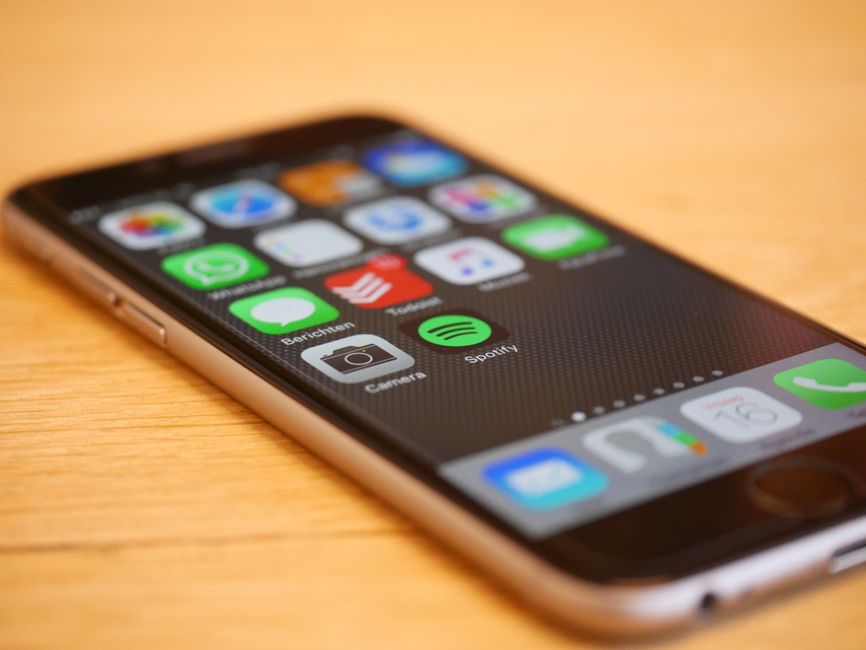
It's easy to point fingers at Windows, but mobile operating systems like iOS and Android are equally voracious in their data appetites, albeit with different approaches and transparency levels. Apple, often lauded for its strong privacy stance, still collects extensive diagnostic and usage data from its devices. While much of this is processed on-device and Apple emphasizes that it doesn't build user profiles from this data for advertising, the information collected can still be incredibly detailed, including crash logs, performance data, and app usage patterns. Users are typically given options to share or not share this data with Apple and app developers, but the defaults are often set to "share," and the explanations can be vague, leaving many users unaware of the scope of what they're consenting to.
Android, being an open-source platform with Google at its core, presents a slightly different challenge. While Google collects its own extensive telemetry (as discussed with advertising IDs and location history), individual Android device manufacturers (Samsung, Xiaomi, etc.) also often add their own layers of telemetry and diagnostic data collection on top of the base Android OS. This creates a complex ecosystem where data can be flowing to Google, the device manufacturer, and potentially other third-party services integrated into the custom Android skin. Each of these entities has its own privacy policy, its own data retention practices, and its own potential vulnerabilities. The difficulty for the average user lies in identifying all these different data streams and finding the specific settings to control them, which can vary significantly from one Android phone to another.
"Privacy is a human right, not a privilege." – Aaron Swartz
The "why" behind this OS-level data collection is often genuinely for product improvement, but the "what" and "how" can deeply impact your privacy. Disabling or minimizing telemetry and diagnostic data collection doesn't mean your device will stop working or become insecure. It simply means you're reducing the amount of personal information that your operating system is constantly sending back to its creators. This is about making an informed choice about the trade-off between contributing to product improvement and safeguarding your personal digital footprint. For instance, if you're a privacy-conscious user, opting for the lowest possible telemetry settings on Windows, or carefully reviewing and disabling diagnostic data sharing on iOS and Android, becomes a crucial step. It’s an assertion of control over the most fundamental software on your devices. Ignoring these settings is to tacitly agree to a continuous, detailed report on your system's activities and, by extension, your digital habits, being sent into the cloud, where its ultimate fate and potential uses remain largely outside of your knowledge or control. It’s a quiet yet profound erosion of your digital sovereignty, allowing the very foundation of your computing experience to become an extension of the data collection apparatus.
Taking Back the Reins Your Actionable Privacy Playbook
We've peeled back the layers, examining the pervasive nature of hidden trackers and the insidious ways our data is collected, analyzed, and monetized. The journey through third-party cookies, location services, app permissions, personalized ads, and operating system telemetry might feel overwhelming, a daunting landscape of digital threats. But here's the crucial takeaway: you are not powerless. Equipping yourself with knowledge is the first step, and now, it's time to translate that understanding into concrete, actionable steps. Think of this as your personal privacy playbook, a guide to reclaiming control over your digital life and building a more resilient, private online existence. These aren't one-time fixes; they are ongoing habits that will empower you to navigate the digital world with greater confidence and security.
The first area to tackle revolves around your web browser, the gateway to much of your online activity. Head into your browser's settings, whether you're using Chrome, Firefox, Safari, or Edge. Look for sections related to "Privacy and Security" or "Tracking Protection." Here, you absolutely must enable features that block third-party cookies and implement enhanced tracking protection. In Firefox, this is often under "Enhanced Tracking Protection" where you can choose "Strict" mode. Safari's "Intelligent Tracking Prevention" is enabled by default, but it's worth verifying. For Chrome users, while the full third-party cookie phase-out is still ongoing, navigate to "Privacy and security" then "Third-party cookies" and choose "Block third-party cookies." Additionally, consider installing privacy-focused browser extensions like uBlock Origin (for ad and tracker blocking), Privacy Badger (from EFF, specifically for blocking invisible trackers), or Decentraleyes (to prevent tracking via CDNs). These tools act as vigilant guardians, intercepting tracking attempts before they even reach your browser, significantly reducing your digital footprint across the web. Regularly clearing your browser cache and cookies, or setting your browser to do so automatically upon exit, also helps in scrubbing transient trackers.
Next, let's address the sensitive issue of your location data, a digital shadow that follows your every physical move. On both Android and iOS devices, dive into your "Settings" and locate "Location." The primary action here is to review and restrict app access to your location. For each app, ask yourself: does this truly need my precise location? Does it need it "always," or "only while using the app," or "never"? For most apps, "only while using" is the most secure option, or even "never" for those with no legitimate need. Critically, find and disable "Location History" or "Timeline" features within your Google Account settings (myactivity.google.com/locationhistory) and on your Apple device (Settings > Privacy & Security > Location Services > System Services > Significant Locations). If you must keep location history enabled for specific reasons, ensure you set a robust auto-delete policy, perhaps every 3 months. This proactive management prevents a detailed dossier of your physical whereabouts from being built and retained indefinitely, safeguarding your movements from potential surveillance and exploitation.
Wielding the Power of App Permissions and Ad Identifiers
The third crucial step involves a thorough audit of your app permissions, transforming your smartphone from a potential surveillance device into a fortress of privacy. Go into your device's "Settings" and find "Apps" or "App Management." Select each app individually and review its permissions. Be ruthless. If a flashlight app has access to your microphone, revoke it. If a game wants access to your contacts, deny it. Pay particular attention to permissions for "Microphone," "Camera," "Contacts," and "Storage." For apps that genuinely need certain permissions (e.g., a camera app needs camera access), choose the most restrictive option available, such as "Ask next time" or "Only while using the app." This regular review is paramount because app updates can sometimes re-enable permissions, or new permissions might be added without your explicit knowledge. Make it a habit to check these settings at least once a month, ensuring that no app is overstepping its bounds and silently collecting data.
Our fourth area of focus is on combating personalized advertising and the data broker maze, a more complex but equally vital endeavor. Start by resetting your advertising identifier on your mobile devices. On Android, go to Settings > Google > Ads, then tap "Reset advertising ID." On iOS, go to Settings > Privacy & Security > Tracking, then toggle off "Allow Apps to Request to Track" and tap "Reset Advertising Identifier." While this won't stop all tracking, it breaks the link for advertisers to your past ad profile, forcing them to start fresh. Next, dive into your Google Account settings (myaccount.google.com) and navigate to "Data & privacy." Here, you can turn off "Ad personalization" and review your activity controls, including Web & App Activity, YouTube History, and Location History, choosing to pause them or set auto-delete options. Do the same for Facebook (Meta) by going to Settings & Privacy > Settings > Ad Preferences. While directly opting out of every data broker is a monumental task, resources like the National Privacy Opt-Out List (NPOPL) or services like DeleteMe can help automate some of these requests, though often for a fee. The key is to reduce the flow of data at the source, making it harder for brokers to build comprehensive profiles on you.
"The user is not the product. The user is the value proposition." – Jaron Lanier
Finally, let's address the operating system itself and its default telemetry settings. On Windows, navigate to Settings > Privacy & security > Diagnostics & feedback. Here, choose "Required diagnostic data" instead of "Optional diagnostic data." Also, consider disabling "Tailored experiences" and deleting diagnostic data. For macOS, go to System Settings > Privacy & Security > Analytics & Improvements, and uncheck "Share Mac Analytics" and other sharing options. On Android and iOS, within your device's main "Settings," look for sections like "Privacy & security" or "About Phone/Device" and search for "Diagnostic & Usage Data" or "Analytics & Improvements." Disable any options that share diagnostic or usage data with the OS developer or app developers. While completely eliminating all telemetry might not be possible without advanced modifications, minimizing it significantly reduces the amount of personal information your device is constantly broadcasting. This final step empowers you to control the very foundation of your digital interactions, preventing your operating system from becoming an unwitting informant. By consistently applying these five critical changes, you're not just tweaking settings; you're fundamentally altering your relationship with technology, moving from a passive data source to an active, informed participant who values and protects their digital autonomy. The time for apathy is over; the era of proactive digital self-defense has begun. Your privacy is a continuous journey, not a destination, and every step you take to secure it is a victory in the ongoing battle for digital freedom.