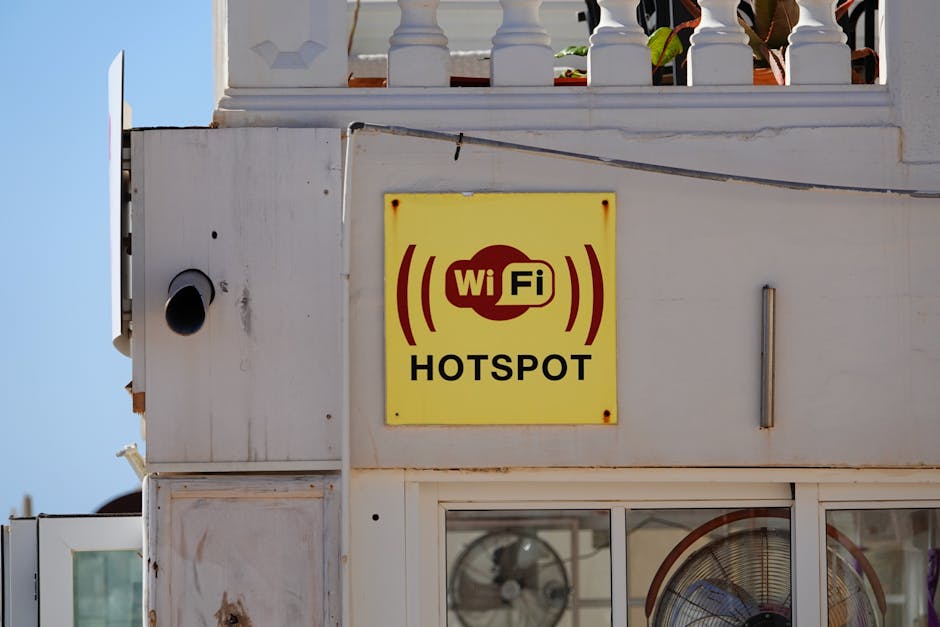
Your Personal Cybersecurity Toolkit Mastering Safe Public Wi-Fi Habits
Navigating the digital landscape in an increasingly connected world means embracing convenience while simultaneously acknowledging its inherent risks. Public Wi-Fi, as we've thoroughly explored, is a prime example of this duality: a beacon of connectivity that often doubles as a digital minefield. While the threats are real and pervasive, the good news is that you are not powerless. Arming yourself with the right tools and adopting smart, proactive habits can transform your public Wi-Fi experience from a risky gamble into a secure and productive endeavor. This isn't about becoming a cybersecurity expert overnight; it's about integrating a few key practices into your digital routine, making them second nature, just like locking your front door or checking both ways before crossing the street. Your digital life is as valuable as your physical possessions, and it deserves the same level of diligent protection.
The journey to mastering safe public Wi-Fi habits begins with understanding that your personal device is the ultimate frontier of defense. While networks can be compromised, your ability to secure your endpoint and your data's journey through it is paramount. The strategies outlined here are practical, actionable, and designed to provide comprehensive protection against the array of data thieves hiding in plain sight. They represent a multi-layered approach, where each tip reinforces the others, creating a robust shield around your digital identity. Remember, cybersecurity is an ongoing process, not a one-time fix. It requires vigilance, continuous learning, and a willingness to adapt to new threats. But with these tools and habits firmly in your arsenal, you can confidently connect to public Wi-Fi, knowing you've taken every reasonable step to safeguard your privacy and security.
Always Use a VPN on Public Wi-Fi Your Golden Rule of Connectivity
Without a doubt, the single most important action you can take when connecting to any public Wi-Fi network is to use a Virtual Private Network (VPN). This is not merely a recommendation; it is your golden rule of public Wi-Fi connectivity. As we've detailed, a VPN encrypts all your internet traffic and masks your IP address, creating a secure tunnel that renders your data unreadable to local network snoopers and prevents them from identifying you. Think of it as putting on an invisibility cloak and a secure vault around all your digital communications. Whether you're just checking the news or handling sensitive banking transactions, a VPN provides that essential layer of protection.
Here’s a simple step-by-step guide:
- Choose a Reputable VPN Provider: Invest in a paid, trustworthy VPN service known for strong encryption (AES-256), a strict no-logs policy (preferably audited), a Kill Switch, and DNS leak protection. Avoid free VPNs, as they often come with hidden costs like data logging, slower speeds, or even malware.
- Install the VPN App: Download and install the VPN application on all your devices – laptop, smartphone, tablet. Most providers offer intuitive apps for various operating systems.
- Log In and Connect: Open the VPN app, log in with your credentials, and select a server location. For general security, any server is fine, but choosing one geographically closer to you might offer better speeds.
- Verify Connection: Ensure the VPN app indicates a successful connection. You can also perform a quick IP address check online (e.g., "what is my IP") to confirm your IP address has changed to that of the VPN server.
- Enable Kill Switch: Make sure the Kill Switch feature is enabled in your VPN's settings to prevent accidental data leaks if the VPN connection drops.
- Use Consistently: Make it a habit to activate your VPN *before* you start browsing or using any apps whenever you connect to public Wi-Fi.
This simple habit fundamentally changes your risk profile, turning a potentially dangerous connection into a secure one. It's the most effective, overarching defense against the vast majority of public Wi-Fi threats.
Verify Wi-Fi Networks Don't Fall for the Evil Twin
While a VPN offers robust protection, it's still prudent to exercise caution when selecting a Wi-Fi network. The "Evil Twin" attack preys on our trust in familiar names. Always take a moment to confirm the legitimacy of a public Wi-Fi network before connecting. This means more than just looking for a familiar name; it means actively verifying it with staff members.
- Ask for the Official Name: If you're in a coffee shop, hotel, or airport, politely ask a staff member for the exact name of their official Wi-Fi network. There might be multiple networks with similar names, and you want to ensure you're connecting to the legitimate one.
- Check for Passwords: Legitimate public Wi-Fi networks often require a password, even if it's displayed publicly. If a network with a familiar name is completely open (no password), be extra suspicious, especially if the legitimate network is known to have a password.
- Look for Security Protocols: When selecting a network, your device usually shows the security type (e.g., WPA2, Open). While "Open" networks are common in public places, they are inherently insecure. If you see two networks with the same name, and one is "Open" while the other is WPA2-encrypted, always choose the WPA2 option if you have the password.
Even with a VPN, connecting to a malicious network can still pose some risks, such as slower speeds or potential for the attacker to see that you are using a VPN (though not what you're doing). Minimizing your exposure to malicious networks is always a smart move.
Disable Automatic Wi-Fi Connection and File Sharing
Your devices are often configured for convenience, which can sometimes be a security liability. Two settings you should review and adjust are automatic Wi-Fi connection and file sharing.
- Turn Off Automatic Wi-Fi Connection: Many devices are set to automatically connect to known Wi-Fi networks or even suggest connecting to open networks. This can lead your device to unknowingly connect to an Evil Twin network that mimics a network you've used before. Disable this feature in your device's Wi-Fi settings. Manually select and connect to networks only after verification. This small step gives you control and prevents your device from blindly jumping onto potentially malicious hotspots.
- Disable File Sharing and AirDrop/Nearby Share: On public networks, your device might be discoverable by others. Features like Windows File Sharing, macOS AirDrop, or Android's Nearby Share, while convenient for sharing files between your own devices, can expose your files to others on the same network if not configured securely. Before connecting to public Wi-Fi, ensure these features are turned off or set to "Contacts Only" or "Off." This prevents unauthorized access to your local files and makes your device less visible to potential attackers scanning the network for vulnerable targets.
These adjustments take only a moment but significantly reduce your attack surface, making it harder for opportunistic attackers to exploit your device directly.
Use HTTPS Everywhere and Look for the Padlock
While a VPN encrypts your entire connection, ensuring that your communication with individual websites also uses encryption adds another layer of defense. Always prioritize websites that use HTTPS (Hypertext Transfer Protocol Secure). You can identify an HTTPS connection by the "https://" in the website's URL and, more importantly, by the padlock icon in your browser's address bar. This padlock signifies that the communication between your browser and the website's server is encrypted, protecting your data even if your VPN somehow fails or if you are not using one.
Most major websites, especially those dealing with sensitive information like banking, e-commerce, and email, use HTTPS by default. However, some older or less reputable sites might still use HTTP, which transmits data in plain text. If you find yourself on an HTTP site, especially on public Wi-Fi, avoid entering any sensitive information. Consider installing browser extensions like "HTTPS Everywhere" (from the Electronic Frontier Foundation), which attempts to force an HTTPS connection for websites that support it, even if you initially try to access them via HTTP. This ensures that even if an attacker intercepts your traffic, the data exchanged with the website remains encrypted and secure.
Strong, Unique Passwords and Two-Factor Authentication (2FA)
This advice isn't exclusive to public Wi-Fi, but its importance is magnified when you're in a vulnerable environment. Even if an attacker manages to capture some data, strong passwords and 2FA can be your last line of defense.
- Strong, Unique Passwords: Use a long, complex, and unique password for every single online account. Never reuse passwords. If one account is compromised, the attacker won't be able to access your other services. A password manager is an invaluable tool for generating and securely storing these complex passwords.
- Two-Factor Authentication (2FA): Enable 2FA on every account that offers it. This adds an extra layer of security by requiring a second form of verification (like a code from an authenticator app, a text message, or a physical security key) in addition to your password. Even if an attacker steals your password, they won't be able to log in without that second factor. This is a game-changer in preventing unauthorized access, especially when your credentials might be at higher risk on public networks.
These fundamental security practices are non-negotiable in today's digital world and become even more critical when you're operating outside the secure confines of your home network.
Keep Software Updated and Consider a Mobile Hotspot
Finally, two more practical pieces of advice to round out your public Wi-Fi safety toolkit:
- Keep All Software Updated: Regularly update your operating system, web browsers, antivirus software, and all applications. Software updates often include critical security patches that fix vulnerabilities exploited by attackers. Running outdated software is like leaving holes in your digital fence, making it easier for malware to infiltrate your device, especially when connected to a potentially compromised public network. Enable automatic updates where possible, or make it a routine to check for and install updates promptly.
- Consider a Mobile Hotspot: For truly sensitive activities or if you frequently find yourself needing to connect securely on the go, consider using your smartphone as a mobile hotspot. Your phone's cellular data connection is generally more secure than public Wi-Fi because it creates a direct, encrypted connection between your device and your mobile carrier. While it uses your data plan, the peace of mind and enhanced security can be well worth the cost, especially for business travelers or anyone handling confidential information. It effectively sidesteps the public Wi-Fi trap entirely, giving you a private, secure connection wherever you have cellular service.
By integrating these practices into your daily digital routine, you transform yourself from a potential victim into a well-protected user. Public Wi-Fi doesn't have to be a trap; with the right knowledge and tools, it can remain a convenient and safe amenity in our interconnected lives. Stay vigilant, stay informed, and most importantly, stay secure.