With a foundational understanding of tracking mechanisms and the role of essential privacy extensions, we can now delve into the intricate world of browser configuration. This isn't just about clicking a few checkboxes; it's about surgically altering your browser's default behavior, peeling back layers of convenience that often come at the cost of privacy. Each major browser – Chrome, Firefox, and Edge – presents its own unique set of challenges and opportunities for hardening. While they all aim for user-friendliness, beneath their polished interfaces lie powerful, often overlooked, settings that can be tweaked to dramatically enhance your untrackability. This requires a meticulous approach, a willingness to experiment, and sometimes, the fortitude to sacrifice a bit of convenience for a significant leap in digital anonymity. Think of it as fine-tuning a high-performance engine; every adjustment plays a crucial role in achieving peak stealth.
The journey to extreme browser hardening is not a one-size-fits-all solution; it’s a tailored process that respects the individual quirks and underlying architectures of Chrome, Firefox, and Edge. What works perfectly for Firefox might not even exist in Chrome, and vice-versa. We’ll explore the hidden corners of their settings, venture into experimental flags, and even touch upon advanced configuration panels that are usually reserved for developers. This deep dive isn't just about telling you *what* to change, but *why* these changes are critical, empowering you to make informed decisions and adapt your setup as the digital landscape continues to evolve. Remember, privacy is an ongoing commitment, not a one-time fix, and mastering these configurations is a vital step in maintaining your digital disguise.
Deep Dive into Browser Settings Unearthing Hidden Privacy Controls
Each major browser, despite its public-facing simplicity, contains a labyrinth of settings, many of which directly impact your privacy and susceptibility to tracking. The default configurations are almost always geared towards convenience and broad compatibility, which unfortunately often means sacrificing privacy. To achieve true untrackability, we must venture beyond the obvious privacy toggles and delve into the more granular, sometimes obscure, controls. This is where we truly begin to dismantle the tracking infrastructure from within your browser itself, systematically shutting down data leaks and hardening your digital perimeter.
Let's start with Google Chrome, the undisputed market leader, which ironically, given its parent company's business model, offers a surprising number of privacy controls if you know where to look. Beyond the standard "Privacy and security" section where you should absolutely disable "Sync and Google services" (unless you explicitly need cross-device sync and trust Google with your data), turn off "Safe Browsing" (it sends your browsing data to Google), and block third-party cookies, there's a deeper layer. Navigate to `chrome://flags` in your address bar. This is Chrome's experimental features panel, where you can find settings that aren't yet mainstream. Look for flags related to "Privacy Sandbox" (though these are often Google's alternative to third-party cookies, not necessarily a privacy win), "Fingerprinting protection," or "Network Service" isolation. Specifically, consider enabling "Network Service sandbox" and "Reduce user agent string" (if available). Crucially, go to "Site Settings" and individually review permissions for location, camera, microphone, notifications, and especially "Pop-ups and redirects," ensuring they are set to "Blocked" by default. For DNS, Chrome now supports DNS over HTTPS (DoH); ensure you configure it to use a privacy-focused provider like Cloudflare (1.1.1.1) or Quad9 (9.9.9.9) instead of your ISP's default. This encrypts your DNS queries, preventing your ISP from seeing which websites you're trying to visit, adding a vital layer of network privacy.
Mozilla Firefox, a long-standing champion of user privacy, offers arguably the most robust built-in privacy tools, especially when combined with its legendary `about:config` panel. Start with "Enhanced Tracking Protection" (ETP) in the Privacy & Security settings. Set this to "Strict" mode, which blocks known trackers, cryptominers, and fingerprinting scripts. While "Strict" might break some sites, it's a powerful defense. For even finer control, use "Custom" mode and ensure all categories – Trackers, Cookies (especially third-party), Cryptominers, and Fingerprinters – are checked. Next, dive into the fabled `about:config` by typing it into the address bar and accepting the warning. Here, you'll find hundreds of advanced settings. Search for `privacy.resistFingerprinting` and set it to `true`. This is a game-changer, as it attempts to make your Firefox browser appear generic to websites, preventing many fingerprinting techniques by reporting a standardized screen resolution, timezone, and other parameters. Also, search for `network.http.referer.trimmingPolicy` and set it to `2` (sends only the scheme, host, and port in the Referer header), and `network.cookie.cookieBehavior` to `1` (block all third-party cookies). Firefox also supports DoH; configure it in the Network Settings to use a trusted provider, ensuring your DNS queries are encrypted and private. These `about:config` tweaks are powerful but require careful consideration, as incorrect changes can impact browser stability or functionality.
Finally, Microsoft Edge, built on the Chromium engine, has significantly improved its privacy posture in recent years, though it still benefits from careful configuration. Head to "Privacy, search, and services" in the settings. Here, the "Tracking prevention" feature is your primary weapon. Set it to "Strict" to block most trackers. Like Firefox, this might break some sites, but it's a necessary step. Make sure "Do Not Track" requests are sent, though remember many sites ignore this. Crucially, disable "Allow sites to check if you have payment methods saved" and "Help improve Microsoft products by sending optional diagnostic data." Under the "Privacy" section, ensure "Search and service improvement" is turned off. For DNS, Edge, being Chromium-based, also supports DoH. Configure it to use a privacy-focused provider, mirroring the steps for Chrome. While Edge's `edge://flags` panel is similar to Chrome's, it generally has fewer privacy-specific experimental features compared to Firefox's `about:config`. Focus instead on its robust "Tracking prevention" and careful management of site permissions. Remember, for all browsers, regularly review and clear your browsing data, especially cached images and files, to remove lingering identifiers and ensure a clean slate.
The Network Layer Your First Line of Defense Against Prying Eyes
While browser-level configurations are crucial, they only address a portion of the tracking problem. Your browser is merely an application running on your device, and that device is connected to the internet through a network. This network layer, encompassing your Wi-Fi, Ethernet, and cellular connections, represents a critical vulnerability if left unaddressed. Every piece of data your browser sends and receives travels through this layer, and without proper protection, it can be intercepted, monitored, or logged by your Internet Service Provider (ISP), network administrators, or even malicious actors. Thinking of your stealth browser setup without securing the network is like building a bulletproof car but leaving the windows wide open. The network layer is your first line of defense, and securing it is paramount to achieving true untrackability.
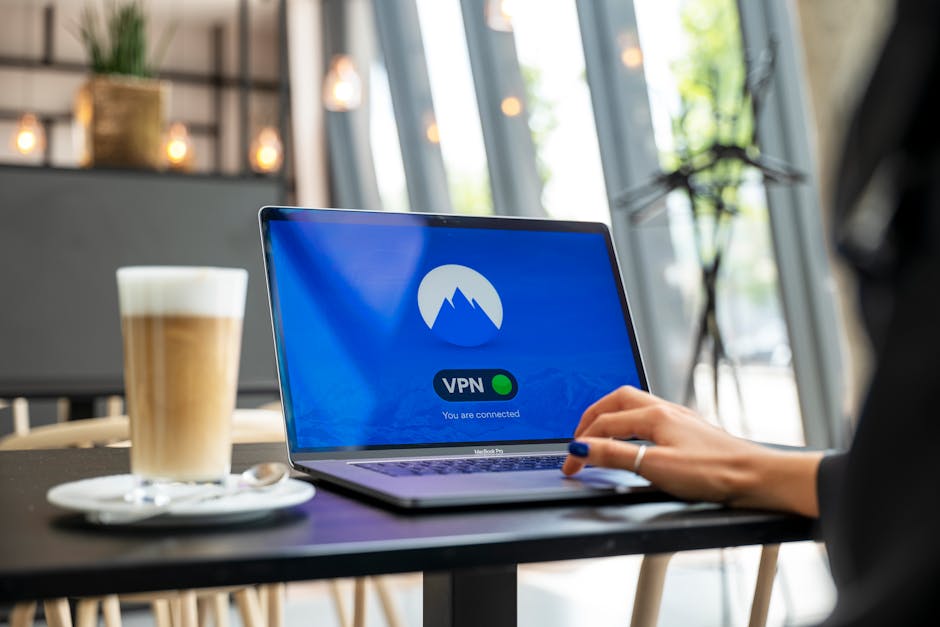
The cornerstone of network-level privacy is a robust Virtual Private Network (VPN). A VPN encrypts all your internet traffic and routes it through a server operated by the VPN provider, effectively masking your real IP address and location. This means your ISP can no longer see which websites you visit or what data you're sending and receiving; they only see an encrypted connection to the VPN server. When choosing a VPN, prioritize providers with a strict no-logs policy (meaning they don't store records of your online activities), audited security practices, strong encryption protocols (like OpenVPN or WireGuard), and a kill switch feature. A kill switch automatically disconnects your internet if the VPN connection drops, preventing your real IP address from being exposed even for a moment. Avoid free VPNs, as they often monetize your data or inject ads, undermining the very privacy they claim to offer. For extreme untrackability, ensure your VPN is configured to use custom DNS servers (like Cloudflare's 1.1.1.1 or Quad9's 9.9.9.9) and consider chaining VPNs (connecting to one VPN server, then from there to another) for an even higher degree of obfuscation, though this will significantly impact speed.
For those seeking the highest echelon of anonymity, beyond what a commercial VPN can offer, the Tor network is an indispensable tool. Tor, short for "The Onion Router," routes your internet traffic through a decentralized network of volunteer-operated relays around the world, encrypting it multiple times at each "hop." This multi-layered encryption makes it incredibly difficult to trace your online activity back to your original IP address. While you can configure browsers to use Tor as a proxy, the safest and most recommended way to access the Tor network is by using the dedicated Tor Browser. It's a modified version of Firefox specifically designed to prevent common tracking techniques and ensure anonymity on the Tor network. It comes pre-configured with `privacy.resistFingerprinting` enabled, blocks scripts by default (similar to NoScript), and automatically routes all traffic through Tor. While slower than a direct connection or VPN, Tor Browser offers unparalleled anonymity for specific tasks, such as accessing sensitive information, communicating securely, or bypassing censorship. It's a tool for specific use cases where anonymity is paramount, rather than a general-purpose daily driver, given its speed and potential for CAPTCHAs on many sites.
Beyond VPNs and Tor, securing your DNS (Domain Name System) queries is another critical, often overlooked, aspect of network privacy. DNS is the internet's phonebook, translating human-readable website names (like "google.com") into machine-readable IP addresses. By default, your DNS requests are handled by your ISP, meaning they can see every website you try to visit, even if the content itself is encrypted by HTTPS. This is a massive privacy hole. The solution lies in using DNS over HTTPS (DoH) or DNS over TLS (DoT). These protocols encrypt your DNS queries, sending them to a trusted, privacy-focused DNS resolver instead of your ISP. Both Chrome, Firefox, and Edge now support DoH, allowing you to configure them to use services like Cloudflare's 1.1.1.1 (which promises not to log your IP) or Quad9's 9.9.9.9 (which also blocks malicious domains). By encrypting your DNS traffic, you prevent your ISP from building a comprehensive profile of your browsing habits based solely on your DNS requests, adding a crucial layer of obscurity to your online activities. This seemingly small change has a profound impact on your overall privacy posture, making it a non-negotiable step in any advanced stealth browser setup.
Taming the JavaScript Beast Script Blocking for Ultimate Control
JavaScript, the ubiquitous scripting language that powers most of the dynamic and interactive elements of modern websites, is a double-edged sword. On one hand, it enables rich user experiences, complex applications, and seamless interactions. On the other hand, it is the primary vector for virtually all advanced tracking, fingerprinting, and malicious scripts. From social media widgets that track your presence across sites to analytics scripts that meticulously log your every move, JavaScript is the engine of the surveillance economy. To achieve true untrackability, you must learn to tame this beast, not necessarily by killing it entirely, but by gaining granular control over when and where it's allowed to run. This is where advanced script blockers come into play, offering unparalleled power to dismantle the tracking infrastructure at its source, albeit with a steeper learning curve and potential for website breakage.
The most potent weapon in this fight, particularly for Firefox users, is NoScript. This veteran extension takes an "allow-list" approach: it blocks all JavaScript, Java, Flash, and other executable content by default. When you visit a website, it will likely appear broken, with images missing, menus not working, and interactive elements unresponsive. NoScript then allows you to selectively enable scripts from specific domains, either temporarily or permanently. For example, if you visit a news site, you might initially see a blank page. NoScript will show you a list of domains attempting to run scripts (e.g., the news site's own domain, an analytics domain, an ad domain, a CDN domain). You can then choose to trust the news site's domain to make the site functional, while still blocking the analytics and ad domains. This level of control is incredibly powerful, as it prevents trackers from even loading their code, rendering them completely ineffective. However, it demands patience and a willingness to troubleshoot broken websites, making it unsuitable for casual users but indispensable for those committed to extreme privacy. It provides a real-time education on how websites are constructed and which third-party services they rely upon.
For Chrome users, or Firefox users who find NoScript too aggressive, uMatrix (while unfortunately no longer maintained by its original developer, it still functions well and has forks/alternatives) offered a similar, albeit more visual, grid-based approach. It allowed users to block or allow different types of content (scripts, CSS, images, XHR, frames, etc.) from various domains (first-party, third-party) on a per-site basis. Imagine a spreadsheet where rows are content types and columns are domains, and you click cells to toggle permissions. This gives you incredibly fine-grained control, allowing you to selectively enable only the necessary components for a site to function while blocking everything else. For instance, you could allow scripts from the main domain, but block all third-party scripts, all analytics, and all social media widgets. While uMatrix requires a significant investment of time to learn and configure for each site you visit, the level of control it provides over your browser's content loading is unmatched, turning your browser into an impenetrable fortress against script-based tracking. For those seeking active alternatives, extensions like ScriptSafe (for Chromium browsers) offer similar, though often less granular, functionality.
The trade-off with such aggressive script blocking is, undoubtedly, usability. Many modern websites are heavily reliant on JavaScript for core functionality, and blocking everything by default will inevitably break them. This creates a constant dance between security and convenience. However, the benefit is profound: by preventing scripts from loading, you eliminate the vast majority of tracking vectors, significantly reduce your exposure to malware, and drastically improve page loading times. It forces you to consciously evaluate every script that wants to run on your browser, making you an active gatekeeper of your digital experience. For the truly privacy-conscious, this effort is well worth it. It instills a disciplined browsing habit, where you only grant permissions when absolutely necessary, thus minimizing your digital footprint and making you incredibly difficult to track. This mindset shift, from passive consumption to active control, is perhaps the most powerful tool in your untrackability arsenal.