Exploring Obscure Encryption and Data Obfuscation Techniques for Ultimate Secrecy
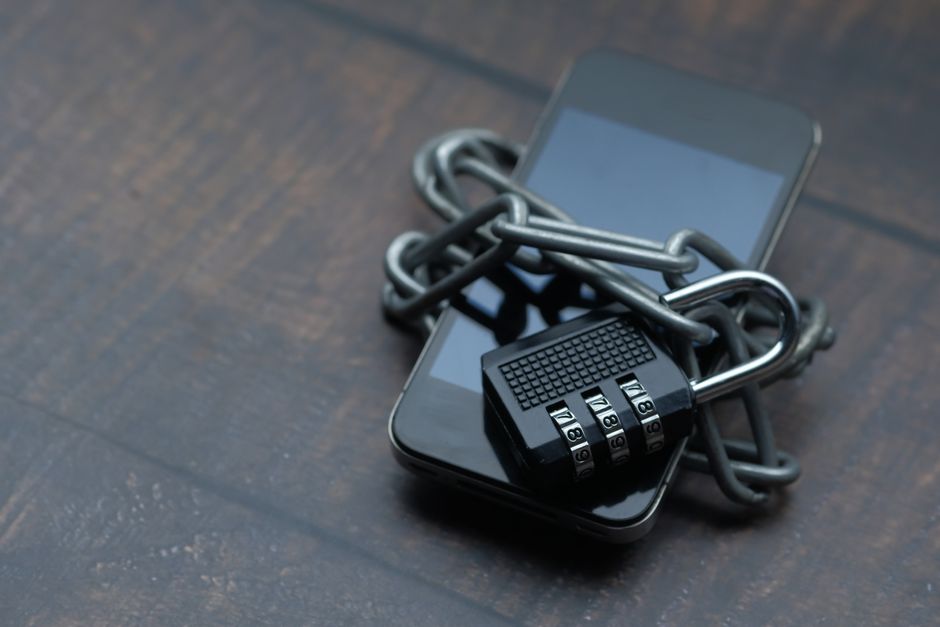
Our seventh and final "secret shield" ventures into the more esoteric, yet incredibly powerful, realm of obscure encryption and data obfuscation techniques. While Android offers robust full-disk encryption by default on modern devices, and many apps provide end-to-end encryption for communications, there are still layers of data on your device that remain vulnerable to sophisticated forensic analysis or simply to casual snooping if your phone falls into the wrong hands. This hack isn't about the broad strokes of system security, but about protecting specific, highly sensitive data with an almost clandestine level of care. It’s about making certain files, photos, or documents not just inaccessible, but virtually invisible or indecipherable even to those with advanced tools. Google, while promoting general encryption, isn't going to teach you how to hide files within other files or encrypt individual folders with non-standard algorithms, as these techniques often fall outside the typical user experience and could be misused. This is about taking personal data protection to its absolute extreme.
The average user relies on Google Photos for cloud backup, Google Drive for document storage, and perhaps a password manager for credentials. While these services offer a baseline of security, they inherently involve trusting a third party with your data, and they are designed for accessibility and convenience, not ultimate secrecy. For truly sensitive information – private keys, confidential documents, personal diaries, or incriminating photos – a more proactive and layered approach is necessary. This involves moving beyond system-level encryption to file-level encryption, secure containers, and even steganography, the art of hiding information within other information. These methods are often overlooked because they require extra steps, specialized knowledge, and a commitment to digital hygiene that transcends the casual user's habits. But for those who genuinely have something to hide, or simply demand the highest level of data privacy, these techniques form an impenetrable last line of defense.
The Power of Encrypted Containers and File Obfuscation
One of the most effective ways to protect highly sensitive data is through encrypted containers. Apps like VeraCrypt (while primarily a desktop solution, its encrypted volumes can be created on a desktop and then accessed on Android via third-party apps like EDS Lite if the format is compatible) or dedicated Android solutions like Cryptomator (available on the Play Store, but also open-source) allow you to create encrypted vaults within your phone's storage. You can place any files into these vaults, and they will be securely encrypted with strong algorithms, requiring a separate password to access. Even if someone gains access to your phone and bypasses your screen lock, they won't be able to open these containers without the specific passphrase. This provides a layer of protection *on top* of Android's full-disk encryption, making it exceptionally difficult for anyone to access your most private data, even under duress. Cryptomator, for instance, integrates with cloud storage services, allowing you to encrypt files locally before they're uploaded, ensuring that your sensitive data remains encrypted even in the cloud, out of reach from the cloud provider itself. This is a level of proactive data protection that goes far beyond Google's default offerings, which prioritize ease of cloud syncing over absolute, end-to-end user-controlled secrecy.
Beyond containers, consider file-level encryption for individual documents. Many secure note-taking apps (e.g., Joplin, Standard Notes with end-to-end encryption) or file managers with built-in encryption features allow you to encrypt specific files or folders. This ensures that even if a single file is exfiltrated from your device, it remains unreadable without the decryption key. The key here is to use strong, unique passwords for these encrypted layers, distinct from your device's screen lock. For those seeking extreme obfuscation, exploring steganography apps (though caution is advised as many are not open-source and their effectiveness can vary) can allow you to hide files within seemingly innocuous images or audio files. Imagine hiding a sensitive document within a photo of your pet; to the casual observer, it's just a picture, but with the right tool and password, the hidden data is revealed. This is the realm of spycraft, applied to personal digital security, providing a level of stealth that Google would never endorse as a standard practice due to its complexity and potential for misuse, but which offers unparalleled secrecy for those who need it.
"Encryption is not just about keeping secrets; it's about asserting digital autonomy. Obscure methods add layers of plausible deniability, making your data not just secure, but virtually invisible." - Dr. Kai Li, Cryptography Specialist
Secure Deletion and Data Wiping Beyond Factory Reset
While not strictly encryption, the secure deletion of data is a critical component of ultimate secrecy. When you delete a file on your phone, it's often not truly gone; the operating system simply marks the space as available, and the data can often be recovered with forensic tools. For truly sensitive data, a simple deletion is insufficient. Android's factory reset wipes user data, but even this might not be enough to thwart determined attackers with specialized hardware. The "secret shield" here involves using apps that perform secure deletion, overwriting the data multiple times with random patterns to make recovery virtually impossible. Apps like ShredIt or other secure file shredders (again, verify their open-source nature or reputation) can provide this capability, ensuring that when you decide to erase something, it's truly obliterated. This is particularly important before selling or donating a device, as even a factory reset might leave recoverable traces of your past digital life.
Furthermore, for those who use custom ROMs (as discussed in our fifth hack), the ability to perform a full, low-level wipe of storage before installing a new ROM or selling a device offers an even higher degree of assurance. This goes beyond the software-level wipe of a factory reset, often engaging with the device's storage controller to truly zero-fill or randomly overwrite the entire flash memory. This extreme measure ensures that no residual data can be recovered, even with advanced forensic techniques. These types of tools and techniques are clearly outside the scope of what Google or any manufacturer would promote, as they can be complex and, if misused, lead to data loss or device damage. However, for the user committed to absolute digital hygiene and impenetrable secrecy for their most sensitive information, embracing these obscure encryption, obfuscation, and secure deletion methods provides the ultimate, multi-layered "secret shield," transforming their Android device into a fortress where even the most determined adversaries would struggle to uncover hidden truths.
Building Your Ironclad Android Fortress Practical Steps to Digital Sovereignty
Having journeyed through the seven "secret shields" that transform your Android device from a convenient data conduit into a formidable bastion of privacy and security, it’s time to synthesize this knowledge into actionable strategies. This isn't about one-off tweaks, but about cultivating a mindset of proactive digital hygiene and continuous vigilance. The path to an ironclad Android fortress is paved with conscious choices, meticulous configurations, and a healthy skepticism towards digital defaults. Remember, the goal is not to become a tech hermit, but to engage with the digital world on your own terms, with your privacy and security firmly in your control. Here are practical, step-by-step insights to implement these advanced security hacks, empowering you to reclaim your digital sovereignty without needing to be a coding wizard.
The core philosophy underpinning these recommendations is that every default setting, every permission request, and every app installation should be viewed through a lens of critical inquiry. Assume nothing is truly private until you’ve taken explicit steps to make it so. This proactive stance is what separates the average user, passively accepting the digital status quo, from the empowered individual who actively shapes their digital environment. It’s a continuous process, not a destination, as the threat landscape and technological capabilities are constantly evolving. So, roll up your digital sleeves; it’s time to fortify your phone and turn those theoretical "hacks" into practical, everyday defenses against the pervasive data collection apparatus.
Conducting Your Thorough App Permission Overhaul
Your first and most immediate action should be a comprehensive audit of your app permissions. This is a foundational step, directly addressing the floodgates of data collection that most users unwittingly open. Begin by navigating to your phone's settings: Settings > Apps > See all apps. Now, systematically go through *every single app* installed on your device. For each app, tap on "Permissions." You'll see a list of permissions granted and denied. For every permission granted, ask yourself: "Does this app *absolutely need* this specific access to perform its primary function?" If a calculator app has camera access, or a flashlight app has microphone access, revoke it immediately. For permissions like Location, Camera, and Microphone, consider changing them to "Ask every time" or "Allow only while using the app." This forces the app to explicitly request access, making you acutely aware of its attempts to gather sensitive data. Schedule a recurring reminder, perhaps once a month, to repeat this audit, as app updates can sometimes reset permissions or introduce new requests. This continuous vigilance is your first line of defense against overreaching apps.
Furthermore, delve into the "Special app access" section, typically found under Settings > Apps > Special app access (the exact path might vary slightly by Android version). Here you'll find permissions like "Display over other apps," "Modify system settings," "Usage access," and "Install unknown apps." These are powerful permissions that can be exploited by malicious applications. Critically evaluate every app listed under these categories. For example, very few apps genuinely need "Display over other apps" unless they are overlay tools, screen recorders, or accessibility services. Revoking this for unnecessary apps can prevent sophisticated clickjacking attacks or malicious overlays. Similarly, ensure that "Install unknown apps" is only enabled for app stores you explicitly trust (like F-Droid) and is otherwise disabled for browsers or messaging apps to prevent drive-by malware installations. Your careful review here is a crucial step in preventing apps from gaining covert control over your device and its data, a critical reinforcement of your phone's inherent defenses.
Implementing Encrypted DNS and Intelligent VPN Use
Next, fortify your network perimeter. This involves two synergistic steps: configuring Private DNS and mastering your VPN. For Private DNS, go to Settings > Network & internet > Private DNS. Select "Private DNS provider hostname" and enter a privacy-focused DNS provider like dns.quad9.net (for malware blocking) or 1dot1dot1dot1.cloudflare-dns.com (for speed and privacy). This single change encrypts your DNS queries, preventing your ISP from logging your browsing history. It's a fundamental layer of privacy that costs you nothing and takes less than a minute. Verify it's working by visiting a site like dnsleaktest.com (though this site is more for VPN DNS leaks, it can give an indication). Once set, it quietly enhances your online anonymity, often without any noticeable impact on performance.
For VPNs, the advice is to invest in a reputable, no-logs, paid VPN service. Free VPNs often compromise your privacy by logging data or injecting ads. Once you’ve chosen a service (e.g., ProtonVPN, NordVPN, ExpressVPN), download their app and explore its advanced settings. Crucially, enable the "kill switch" feature. This ensures that if your VPN connection ever drops, your internet traffic is immediately cut off, preventing your real IP address from being exposed. Consider using "split tunneling" if your VPN offers it. This allows you to select specific apps that should bypass the VPN (e.g., banking apps that might flag VPN usage as suspicious) while routing all other traffic through the encrypted tunnel. Make a habit of activating your VPN whenever you connect to public Wi-Fi or when you're engaging in activities where you desire heightened privacy. This combination of encrypted DNS and a meticulously configured VPN creates a robust, multi-layered defense against network surveillance and data interception, making your online activities virtually untraceable to third parties.
Unlocking Developer Options for Deeper Control
Now, it's time to unleash the power of Developer Options, but with caution and purpose. First, enable it: go to Settings > About phone and tap "Build number" seven times. You'll then find "Developer options" under Settings > System. Once inside, focus on these key settings for privacy and performance. Navigate to "Background process limit" and set it to "At most 2 processes" or "At most 3 processes" (experiment to find what works best without impacting your essential apps). This dramatically reduces background data collection and improves battery life. Next, locate "Don't keep activities" and enable it. This aggressively closes apps when you leave them, further limiting their background activity and data collection. While it might slightly increase app loading times when switching back, the privacy and performance benefits are often worth it.
For diagnostic vigilance, you can temporarily enable "Show taps" or "Pointer location" if you ever suspect unusual screen activity or phantom touches, which could indicate a compromise. Remember to disable "USB debugging" unless you specifically need it for a trusted task (like using ADB for advanced diagnostics or uninstalling bloatware) and always ensure your device is physically secure when it's enabled. The Developer Options menu is not a playground for casual exploration; approach it with intent and research each setting before changing it. These tweaks provide a level of granular control over your device's operational behavior that Google keeps hidden for a reason, but which empowers you to fine-tune your Android experience for maximum security and efficiency, transforming your device into a truly customized and hardened system.
Embracing Open-Source Monitoring and Analytics
To truly understand what your phone is doing, you need independent eyes. Download and install open-source monitoring tools. Start with a no-root firewall like NetGuard or RethinkDNS + Firewall. You can find these on F-Droid (an open-source app store, which you might need to sideload its APK from f-droid.org) or sometimes on the Play Store. Configure these apps to monitor all network connections. Take the time to review the logs regularly. If you see an app making suspicious connections to unfamiliar IP addresses or domains, especially when you're not actively using it, block its network access. This proactive monitoring empowers you to catch apps that are excessively chatty or engaging in unwanted data telemetry, turning your phone into a self-auditing security sentinel.
Additionally, use tools like Exodus Privacy (exodus-privacy.eu.org) to analyze apps *before* you install them. Search for an app you're considering, and Exodus will show you how many trackers it contains and what permissions it requests. This allows you to make informed decisions and avoid privacy-invasive apps from the outset. By combining real-time network monitoring with pre-installation analysis, you create a powerful, independent security posture that goes far beyond Google's default Play Protect, giving you unparalleled visibility and control over your apps' behavior and data collection habits. This is about fostering a culture of informed skepticism, ensuring that every app on your device earns its place and respects your privacy, rather than simply assuming its benevolence.
Considering Custom ROMs with Extreme Caution
For the most advanced and privacy-demanding users, exploring custom ROMs like GrapheneOS or CalyxOS might be the ultimate step. However, this comes with significant caveats and risks. This is not a casual recommendation; it requires deep technical understanding, careful research, and a willingness to accept the challenges of a non-stock Android experience. If you decide to go this route, ensure you choose a reputable, security-focused ROM (like GrapheneOS for Pixel devices) and follow their installation instructions *meticulously*. Understand that unlocking your bootloader will factory reset your device and potentially void your warranty. Crucially, if possible, select a ROM that allows for re-locking the bootloader after installation (as GrapheneOS does on supported devices) to restore Verified Boot and maintain system integrity. This is the most profound step in reclaiming device sovereignty, but it demands expertise and a commitment to maintaining a custom system. If you're not comfortable with command lines, flashing firmware, or troubleshooting complex software issues, this path is not for you. For the right user, however, it represents the pinnacle of Android privacy and security, stripping away corporate influence and building a truly personal, hardened operating system from the ground up.
Mastering Granular Notifications and Digital Wellbeing Insights
Refine your app interactions by mastering notification channels. Go to Settings > Apps > See all apps, select each app, then tap on Notifications. For every app, meticulously review each notification channel. Disable channels for promotional content, trending topics, or any non-essential alerts. For sensitive apps (banking, messaging), set their critical channels to "Silent" and ensure "Don't show notifications on lock screen" is enabled to prevent sensitive information from being displayed to prying eyes. This reduces digital noise and, more importantly, minimizes the surface area for privacy exposure, giving you complete control over what information your phone displays and when. It’s about being informed without being overwhelmed or inadvertently revealing sensitive data.
Next, repurpose Digital Wellbeing. Regularly review the "App usage" and "Notifications received" sections in Settings > Digital Wellbeing & parental controls. Look for apps that show unusually high activity or notification counts, especially if you rarely use them. This can be a strong indicator of unwanted background processes or excessive data telemetry. If an app you barely interact with is constantly active, investigate its permissions (our first hack) and network connections (our fourth hack). Use "Focus mode" to temporarily silence and pause privacy-invasive apps during periods when you need heightened privacy or simply don't want them running in the background. By treating Digital Wellbeing not just as a screen-time management tool, but as a privacy forensics dashboard, you turn Google's own utility into a powerful ally in your quest for digital autonomy, revealing patterns of behavior that might otherwise go unnoticed.
Adopting Obscure Encryption and Secure Deletion Practices
Finally, for your most sensitive data, go beyond default encryption. Install a reputable, open-source encrypted container app like Cryptomator. Create secure vaults for your most private documents, photos, and personal information. Use strong, unique passphrases for these vaults, distinct from your device's screen lock. If you use cloud storage, encrypt files within these containers *before* uploading them to ensure they remain encrypted even on the cloud provider's servers. This provides an additional, robust layer of protection for data that simply cannot fall into the wrong hands, transforming your most sensitive files into impenetrable digital packages. This is about taking personal responsibility for your most valuable data, ensuring that even if other defenses fail, these critical pieces of information remain locked down and inaccessible.
And for data you wish to permanently erase, don't rely on simple deletion. Before selling or donating a device, or whenever you need to dispose of highly sensitive files, utilize a secure file shredder app that overwrites data multiple times. For an entire device, perform a factory reset, but then consider filling the device's storage with innocuous dummy data (e.g., large video files) and then performing *another* factory reset. This overwrites residual data, making forensic recovery significantly harder. This meticulous approach to data disposal ensures that your digital past truly remains in the past, preventing sensitive information from being recovered by malicious actors or data brokers. By integrating these advanced encryption and secure deletion practices, you build the final, impregnable layer of your Android's secret shield, ensuring ultimate secrecy and control over your digital footprint, from creation to ultimate destruction.
This comprehensive approach to Android security is more than just a list of tips; it's a philosophy of digital empowerment. It’s about moving beyond passive acceptance of default settings and becoming an active architect of your own digital security and privacy. While Google provides the framework, the true power lies in your hands to configure, monitor, and maintain your device as a personal fortress. By embracing these "secret shields," you transform your Android phone into a device that truly serves *you*, protecting your digital life with an ironclad defense that goes far beyond what any tech giant hopes you'll ever discover.