Unlocking Deeper Defenses More Critical Steps to Network Fortification
Having established the paramount importance of a robust Wi-Fi password and modern encryption, we've only just begun to scratch the surface of true home network security. Think of it as having a sturdy front door and a good lock; it’s essential, but what about the back door, the windows, or even the ventilation system? Many other points of entry exist, often overlooked because they aren't immediately visible or intuitively understood by the average user. These next few tweaks delve into those less obvious but equally critical vulnerabilities, turning our attention from the immediate wireless connection to the very brain of your home network: the router itself. It's here, within the router's settings and software, that some of the most insidious weaknesses can reside, patiently waiting for an opportune moment to be exploited by those looking to gain control.
The journey to a truly bulletproof Wi-Fi privacy setup requires a holistic approach, moving beyond just what you see on your device's Wi-Fi connection screen. It's about understanding the underlying mechanisms, the default configurations that prioritize convenience over security, and the subtle ways our digital lives can be exposed without our explicit knowledge or consent. These subsequent steps are designed to harden the core of your network, ensuring that even if an attacker manages to bypass one layer, they're met with further, formidable resistance. It's a layered defense strategy, much like fortifying a medieval castle, where each additional wall, moat, or gate significantly increases the difficulty and resources required for a successful breach, ultimately deterring most casual or opportunistic threats and frustrating even more determined adversaries.
As we delve into these deeper defenses, it's crucial to remember that security is an ongoing process, not a one-time fix. The digital landscape is constantly shifting, with new threats emerging and old vulnerabilities being rediscovered and repurposed. Therefore, the tweaks we're about to discuss aren't merely checkboxes to tick off; they represent a commitment to ongoing vigilance and a willingness to occasionally revisit your network's configuration. This might sound daunting, but I assure you, the steps are simple, straightforward, and require no advanced technical expertise, just a little patience and a willingness to invest a small amount of time for a significant return in terms of your personal privacy and digital security. Let's continue on this path to transform your home network into the secure, private haven it truly ought to be.
Changing the Keys to Your Kingdom Don't Overlook Router Admin Credentials
After securing your Wi-Fi connection with a strong password, the very next crucial step is to change the default administrative credentials for your router. This is often the most overlooked yet catastrophic oversight in home network security. Think of your Wi-Fi password as the key to your front door, allowing devices to connect to your network. Your router's administrative credentials, however, are the master keys to your entire digital kingdom, granting full control over every setting, every connected device, and every security feature. If an attacker gains access to these, they can change your Wi-Fi password, redirect your internet traffic, snoop on your activities, install malicious firmware, or even turn your router into a botnet node, all without ever needing your Wi-Fi password.
The vast majority of routers come out of the box with default usernames and passwords that are notoriously easy to guess or are publicly documented. Common culprits include combinations like "admin/admin," "admin/password," "root/password," or even no password at all. Many manufacturers also use the router's brand name or model number as part of the default credentials. The infamous Mirai botnet, responsible for some of the largest DDoS attacks in history, famously exploited this very vulnerability, scanning the internet for devices using default credentials to enlist them into its massive army of compromised IoT devices. While Mirai primarily targeted IoT devices, the principle remains terrifyingly relevant for routers, which are essentially the central nervous system of your home network. A compromised router means your entire network is compromised.
Changing these default credentials is a surprisingly simple process, usually involving logging into your router's administrative interface via a web browser (typically by typing an IP address like 192.168.1.1 or 192.168.0.1 into your browser's address bar) and navigating to the 'Administration' or 'Security' section. It's imperative that you replace both the default username and password with a unique, strong combination that you don't use anywhere else. Just like your Wi-Fi password, this should be a complex string of characters, ideally managed by a password manager. This single action immediately neutralizes a massive attack vector, preventing anyone from easily reconfiguring your network, installing backdoors, or otherwise subverting your privacy and security. It's a foundational step that must not be skipped, providing a critical layer of defense against unauthorized access to the very heart of your home's digital infrastructure.
Keeping Your Router's Brain Fresh The Critical Importance of Firmware Updates
Your router isn't just a piece of hardware; it's a specialized computer running its own operating system, known as firmware. Just like the operating systems on your computer or smartphone, router firmware can contain bugs, vulnerabilities, and security flaws that, if left unpatched, can be exploited by attackers. These vulnerabilities range from minor annoyances to critical zero-day exploits that could allow a remote attacker to gain full control of your device without any user interaction. The problem is, unlike our phones and PCs which often prompt us for updates, router firmware updates are frequently overlooked, leading to millions of devices operating with outdated and insecure software, essentially leaving their digital doors ajar for known exploits.
One of the most widely publicized examples of a router firmware vulnerability was the KRACK (Key Reinstallation Attack) vulnerability discovered in 2017, which affected the WPA2 protocol itself. While the core WPA2 protocol was patched, it required router manufacturers to release firmware updates, and users to install them. Devices that didn't receive or apply these updates remained vulnerable, demonstrating how even a robust encryption standard can be undermined by flaws in its implementation or the lack of timely patching. Statistics from cybersecurity firms often show that a significant percentage of consumer routers are running firmware versions that are years out of date, making them prime targets for automated scans seeking these well-known, unpatched weaknesses. It's a stark reminder that even the best hardware is only as secure as its software.
Regularly checking for and applying firmware updates is a critical maintenance task that unfortunately many users neglect. Router manufacturers periodically release these updates to fix bugs, improve performance, and, most importantly, patch security vulnerabilities. The process usually involves visiting your router manufacturer's support website, finding your specific model, downloading the latest firmware file, and then uploading it through your router's administrative interface. While the prospect of "flashing" firmware might sound intimidating, most modern routers have streamlined the process, sometimes even offering automatic update features. Make sure to enable these if available. This proactive measure ensures that your router benefits from the latest security enhancements, closing known loopholes and protecting your network from evolving threats, turning your router into a more resilient guardian of your home's digital security.
Sealing a Sneaky Backdoor Disabling Wi-Fi Protected Setup WPS
Wi-Fi Protected Setup, or WPS, was introduced with the best of intentions: to simplify the process of connecting new devices to a Wi-Fi network, especially for those less technically inclined. Instead of typing a long, complex password, WPS allows you to connect by pressing a button on the router and the device, or by entering an 8-digit PIN. While convenient, this feature has a critical design flaw that makes it a significant security liability, essentially creating a sneaky back door into your network that bypasses the strength of your Wi-Fi password. Many routers, particularly older models, still come with WPS enabled by default, presenting an unnecessary and easily exploitable risk to your network's integrity.
The flaw lies in the 8-digit PIN. Although it appears to be an 8-digit number, the last digit is a checksum, meaning an attacker only needs to guess the first seven digits. Furthermore, the PIN is processed in two halves (the first four digits and the last three), which drastically reduces the number of possible combinations an attacker needs to try. Instead of 100 million possibilities (10^8), an attacker only needs to try a maximum of 11,000 combinations to crack the PIN. With modern computing power, this brute-force attack can be performed in a matter of hours, or even minutes, using readily available tools. Once the PIN is cracked, the attacker gains access to your Wi-Fi password and, subsequently, your entire network, rendering your strong WPA2/WPA3 password completely irrelevant.
Given this significant vulnerability, my unequivocal advice is to disable WPS on your router immediately if it's currently active. You'll typically find the WPS setting within your router's administrative interface, often under the 'Wireless' or 'Security' sections. While disabling it might mean a slightly less convenient setup for new devices, requiring you to manually enter your Wi-Fi password, this minor inconvenience pales in comparison to the security risk of leaving it enabled. For devices that rely on WPS for initial setup, you can temporarily enable it, connect your device, and then immediately disable it again. However, for maximum security, it's best to keep it permanently off. This simple action closes a well-known and easily exploitable back door, significantly enhancing your network's resilience against unauthorized intrusion and safeguarding your privacy.
Building a Digital Air Gap Leveraging Your Router's Guest Network
Most modern routers offer the capability to create a separate "guest network," and this feature is an absolute gem for enhancing your home network's security and privacy. Think of it as creating a digital air gap between your core network and any less-trusted devices or visitors. When you have guests over, or if you own a plethora of smart home devices (IoT gadgets) that might not have the most robust security track record, connecting them to your main Wi-Fi network is like inviting strangers into your living room and giving them free rein to explore your private study. A guest network, on the other hand, quarantines these devices, preventing them from accessing your sensitive files, other connected devices, or your network's administrative interface.
The fundamental principle behind a guest network is network segmentation. It creates a separate Wi-Fi SSID (the network name you see) with its own password, isolated from your primary home network. Devices connected to the guest network can access the internet, but they typically cannot see or communicate with devices on your main network – your computers, NAS drives, smart speakers, or security cameras. This isolation is crucial. For example, if a guest's phone is infected with malware, or if one of your budget smart plugs has a vulnerability that an attacker could exploit, keeping these devices on a guest network prevents that malware or attacker from "jumping" to your main network and compromising your more critical systems and data. It's a proactive measure against lateral movement of threats within your home.
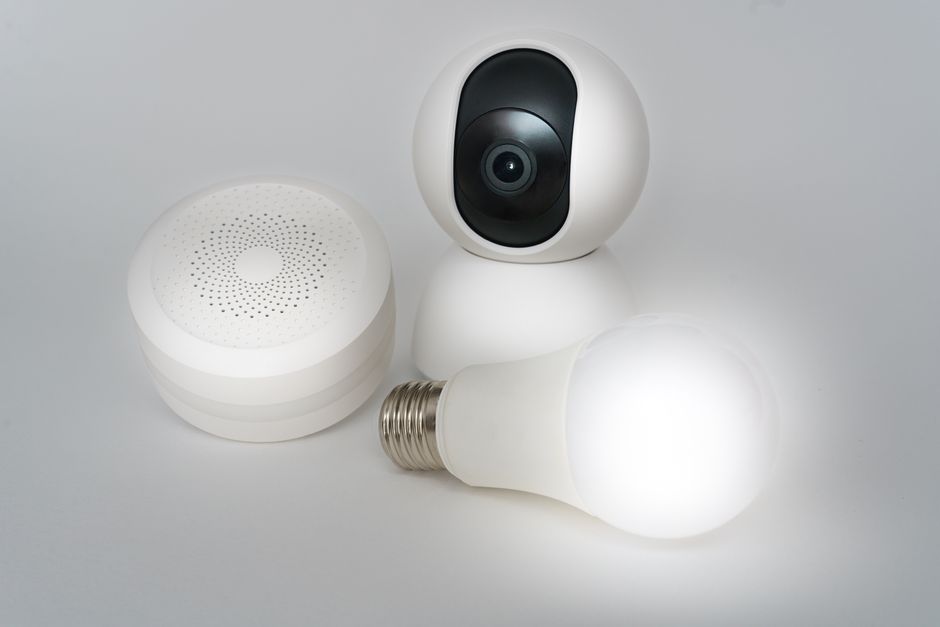
I always recommend setting up a guest network with a distinct, strong password that is different from your main Wi-Fi password. This ensures that even if someone manages to compromise your guest network, your primary network remains secure. Beyond houseguests, guest networks are ideal for all your IoT devices, especially those from less reputable manufacturers or those that don't receive frequent security updates. Smart TVs, smart bulbs, digital picture frames, and even some gaming consoles can benefit from being isolated on a guest network. This strategy significantly reduces the potential attack surface of your core network, providing a robust layer of defense against potential breaches originating from less secure devices. It's about smart network hygiene, ensuring that even if one part of your digital home becomes compromised, the rest remains protected and private.